
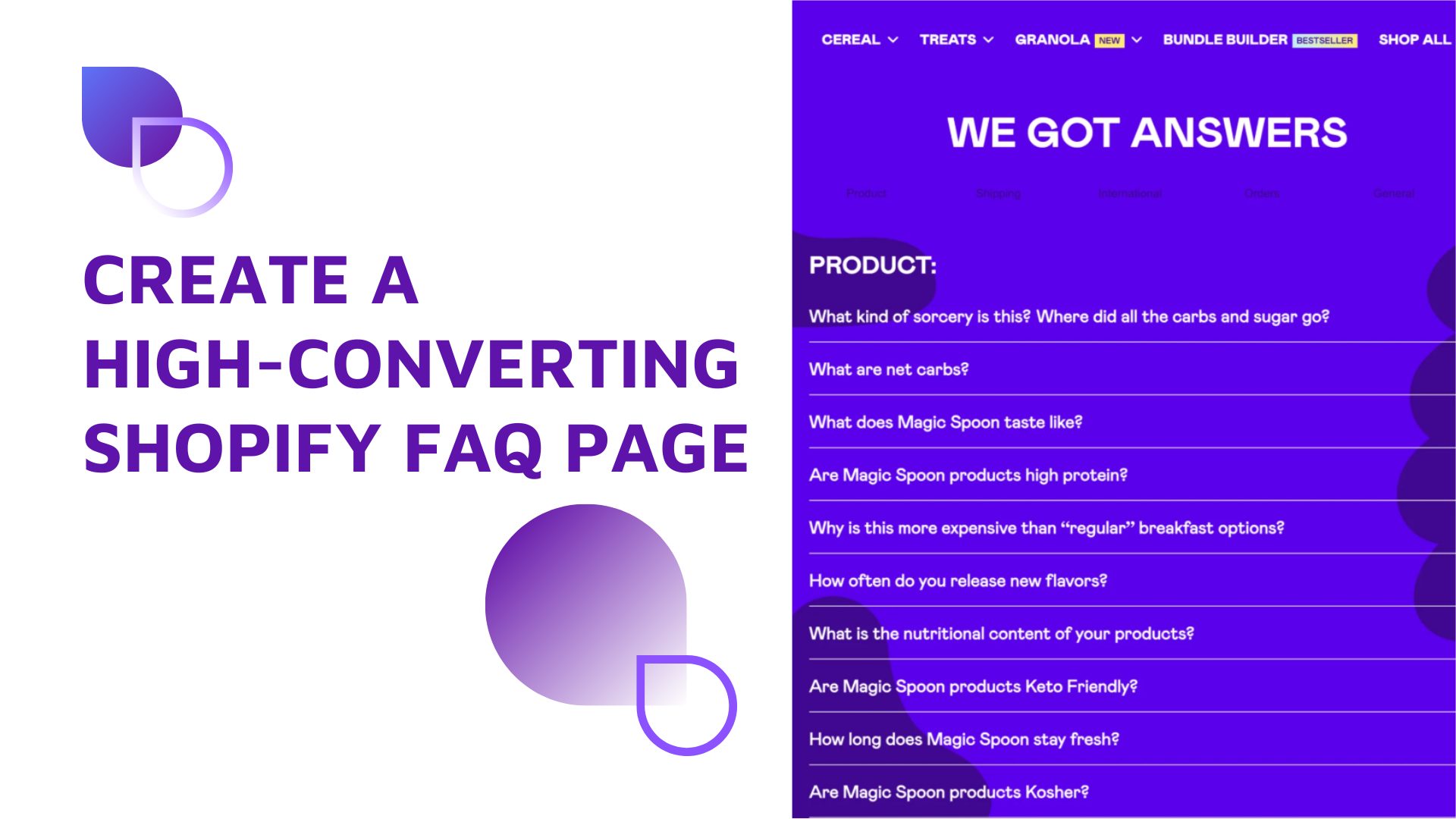
Creating a well-crafted Shopify FAQ page is an effective way to improve customer experience. When shoppers visit your store, they often have questions about shipping, returns, product details, or payment security. If those questions go unanswered, they may hesitate, abandon their cart, or reach out to customer support—costing you both time and potential sales.
With a clear, organized FAQ page, you can address common concerns upfront, build trust, and streamline the buying journey. The good news is that you don’t need technical skills to create a professional, on-brand FAQ page. With Shopify’s Online Store 2.0 and modern drag-and-drop section tools, setting up an effective FAQ page has never been easier.
Table of Contents
What Is a Shopify FAQ Page and Why Does It Matter?
A Shopify FAQ page is a dedicated page on your store where you answer the most common questions customers have about your products, policies, and shopping experience. Instead of forcing visitors to dig through multiple pages, you give them a single place to quickly find clear answers.
In a Shopify store, a FAQ page typically covers:
- Shipping and delivery
- Returns and refunds
- Payments and security
- Product details (materials, sizing, care, etc.)
- Orders, tracking, and cancellations
A powerful Shopify FAQ page can have a meaningful impact on your business:
- Reduces repetitive support questions: When you clearly answer common questions like “How long does shipping take?” or “Can I return a sale item?”, customers don’t need to email or chat with support. This saves time for both your team and your buyers. Especially if you run multiple Shopify stores, you’ll want to unify FAQs across storefronts to keep consistency.
- Builds trust and increases conversions: Many shoppers hesitate at checkout because they’re unsure about shipping, returns, or payment safety. A clear FAQ page addresses these concerns upfront, removes friction, and gives customers the confidence to complete their purchase.
- Improves SEO with long-tail keywords: FAQs naturally include question-based phrases and long-tail keywords your audience is already searching for. This can help your store rank for more specific queries and bring in highly targeted organic traffic.
UX Best Practices for a Shopify FAQ Page
Designing your Shopify FAQ page with user experience in mind makes it much easier for shoppers to find the answers they need—and much more likely they’ll stay on your site and complete their purchase. Here are some practical UX tips you can follow.
Group Questions into Clear Categories
Instead of dumping every question into one long list, break your FAQs into logical categories. This helps visitors quickly scan and jump to the section that’s relevant to them.
Some example categories include shipping & delivery, returns & refunds, orders & tracking, payments & security, and product information (sizing, materials, care). Grouping questions like this improves readability on both desktop and mobile and reduces the feeling of being overwhelmed by too much information.
Make FAQs Easy to Scan
Most customers will scan your FAQ page rather than read every word. Your layout should support that behavior. It is recommended to:
- Use short paragraphs that get to the point quickly
- Break complex answers into bullet points or numbered lists
- Bold key phrases, so important details stand out at a glance
- Keep page width, font size, and line spacing comfortable to read
The easier it is to skim, the faster customers can find the answer they’re looking for.
Design for Mobile First
A large portion of Shopify traffic comes from mobile devices, so your FAQ page needs to work perfectly on smaller screens. You should consider:
- Using accordions or collapsible content, so users can tap to expand only the questions they care about
- Avoiding very long walls of text that force endless scrolling
- Ensuring tap targets (like question titles) are big enough and spaced well for thumbs
A mobile-friendly FAQ experience keeps visitors engaged instead of frustrated.
Place Your FAQ Page Where It Matters
Even the best FAQ page won’t help if customers can’t find it. Make sure it’s visible at key points in the buying journey.
Smart places to link your FAQ:
- In the footer menu (a common place customers look for help)
- From product pages and the cart page for questions about shipping, returns, or sizing
- As FAQ snippets inside product descriptions to handle common objections (e.g., “How long does delivery take?”)
3 Ways to Create a Shopify FAQ Page (No Coding Required)
You don’t need technical skills to build a clean, professional Shopify FAQ page. Shopify’s Online Store 2.0 gives you multiple ways to add FAQ content depending on your design needs and how much customization you want. Here are three simple methods anyone can use.
Method 1 – Using a Simple Content Page
The most basic way to create a FAQ page is by adding a standard page in your Shopify admin and writing your questions and answers manually.
How to do it:
- Go to Online Store → Pages → Add page
- Name it “FAQ”
- Add your questions and answers directly to the page editor
- Publish and link it to your menu
Pros:
- Very easy and quick to set up
- No design tools or coding needed
Cons:
- Limited styling control
- Difficult to create structured layouts
- Long pages can become hard to read on mobile
This method works for simple stores but may feel restrictive as your FAQ content grows.
Method 2 – Using Built-In Theme FAQ/Collapsible Blocks
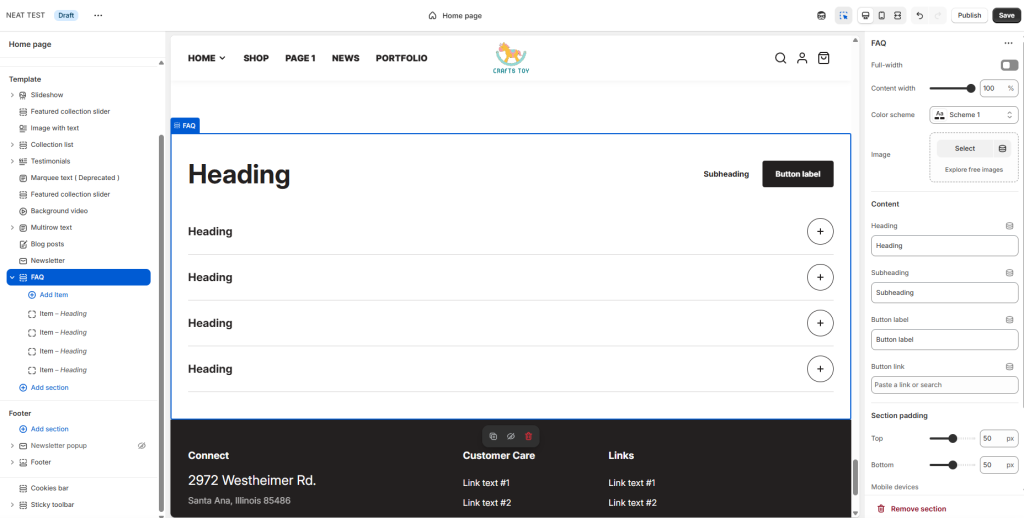
Most Shopify Online Store 2.0 themes include collapsible rows or accordion-style blocks that are perfect for FAQs. These allow visitors to expand and collapse answers, which is great for mobile experience. Some themes, like Neat, offer the FAQ section.
Here is the FAQ section in the Neat Shopify theme.
Where to find them:
- Go to Online Store → Themes → Customize
- Open the page you want to use for FAQs
- Add a Collapsible tab, Accordion, or FAQ section (name varies by theme)
Pros:
- More visually appealing than a plain text page
- Better mobile experience thanks to collapsible content
- Easy to organize questions into separate blocks
Cons:
- Layout options depend entirely on your theme
- Some themes offer only one or two basic FAQ styles
- Harder to reuse the same FAQ section across multiple pages
This method provides better UX but can feel limiting if your theme doesn’t offer many layout variations.
Method 3 – Using a Section Library App for More Layouts
For more flexibility, you can use a section library app like Boostify Sections, which works with any Online Store 2.0 theme. These apps give you access to professionally designed, ready-made FAQ sections that you can insert into any page—no coding required.
How section-based apps work:
- You browse a library of pre-built sections
- Pick a FAQ layout (accordion, multi-column, card-style, etc.)
- Add it to your theme using the Shopify Theme Editor
- Customize colors, fonts, spacing, and content
Benefits:
- Many more layout options than default themes
- Reusable sections that you can add to multiple pages
- Faster to maintain—update once, use anywhere
- Works with any OS 2.0 theme, even free ones
This approach is ideal for stores that want a polished FAQ page without hiring a developer
Building a Shopify FAQ Page with the Free Boostify Sections App
If you want a faster, more flexible way to create a professional FAQ page—without relying on your theme’s limited options—the Boostify Sections app is an excellent solution. This is where the app truly shines.
Why Use Boostify Sections for FAQs?
- Works with any Online Store 2.0 theme: You can insert FAQ sections into Dawn, paid themes, or any custom OS 2.0 theme without compatibility issues.
- Ready-made FAQ layouts: Choose from multiple professionally designed templates, including multi-column layouts, card-style FAQs, and accordion-based designs.
- No coding required: Every layout is drag-and-drop. You can customize colors, fonts, spacing, and the number of FAQ items directly in the Theme Editor.
- Free to install and try: You can explore the FAQ templates, test them in your theme, and customize them, all without paying anything upfront.
With these features, Boostify Sections gives you a level of design flexibility that most Shopify themes don’t offer out of the box.
Adding a FAQ Section with Boostify Sections (Step-by-Step)
Building a professional, customizable FAQ page in Shopify is simple with the Boostify Sections app. This tool lets you add beautifully designed FAQ layouts—such as the “FAQ 05” template—to any Online Store 2.0 theme in just a few clicks. Here’s a detailed walkthrough of the entire process.
Step 1: Install Boostify Sections from the Shopify App Store
To get started, visit the Shopify App Store to find Boostify Sections and install the app.
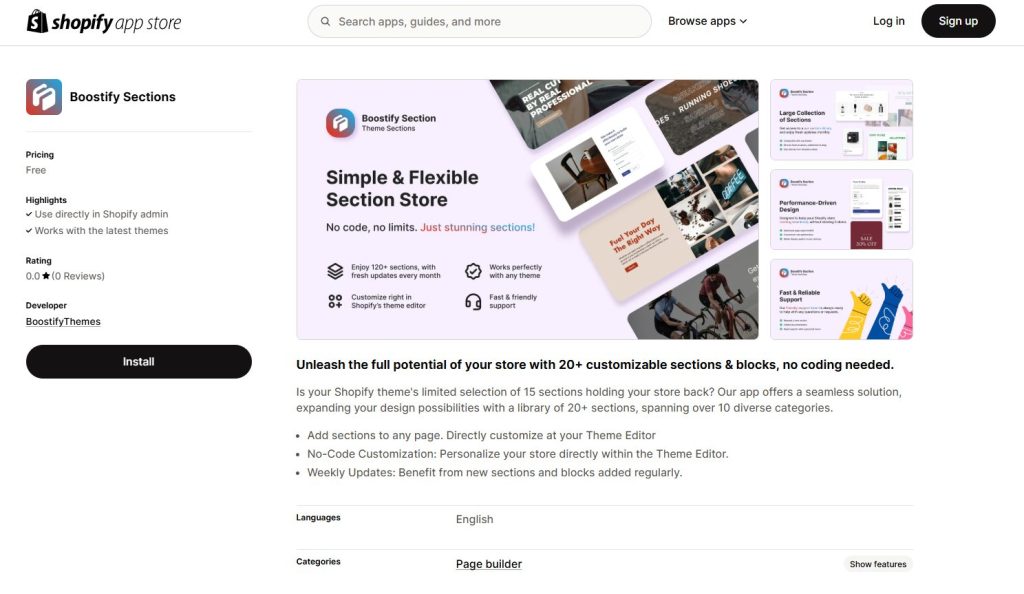
Once installed, the app appears on your Shopify admin sidebar under Apps → Boostify Sections.
Boostify Sections provides a library of free templates—FAQ sections, about us pages, feature boxes, product layouts, customer testimonials, countdown timers, and more—that you can add to any Online Store 2.0 theme without coding.
Step 2: Browse the Global Library for FAQ Templates
Open the app and navigate to: Boostify Sections → Global library
Here, you’ll see all available section designs. Use the Categories filter to select FAQ, which displays all FAQ templates.
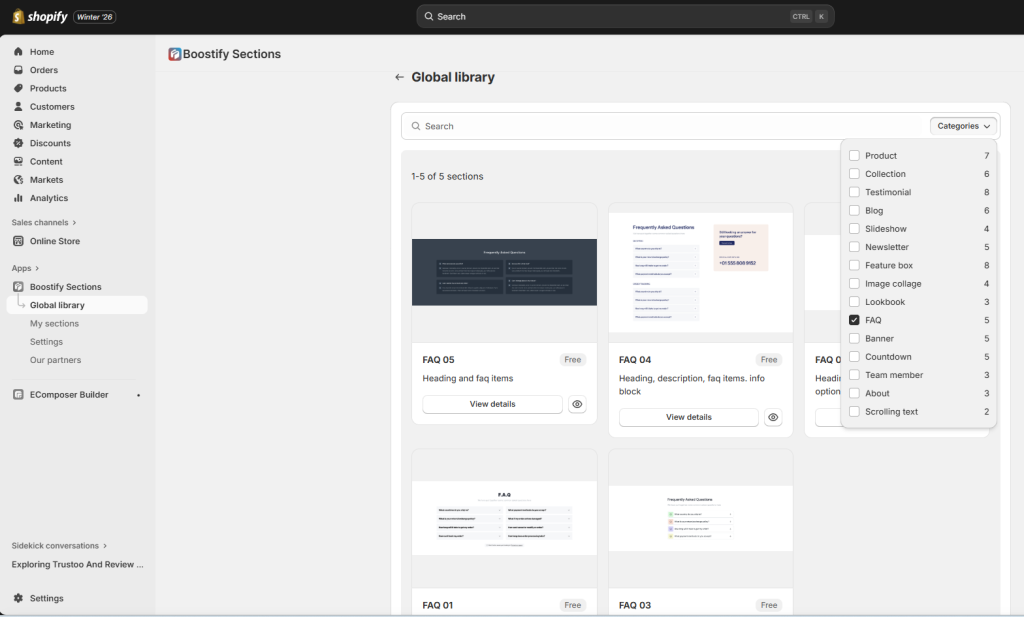
Here we select FAQ 05, a clean, modern layout featuring two-column FAQ blocks—ideal for stores with multiple Q&A items.
Step 3: Preview the FAQ Section and Install It
Click View details on the FAQ 05 template. A preview window opens showing:
- A large screenshot of the layout
- A list of editable settings
- Confirmation that it is Free, Easy to customize, and Compatible with any theme
Select your theme from the dropdown and click Install.
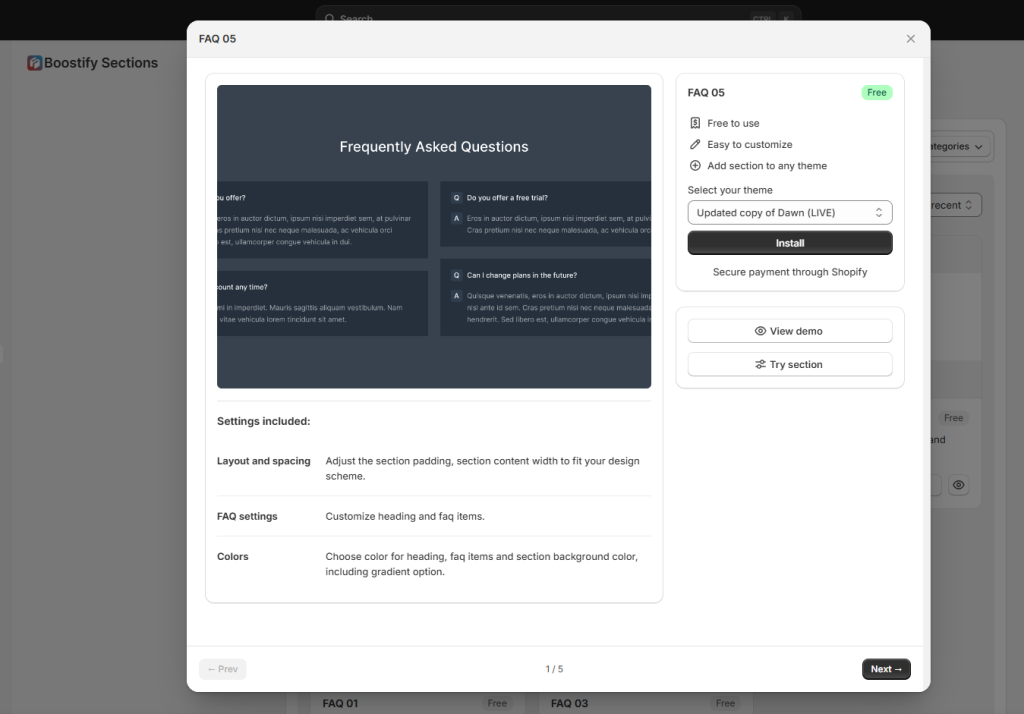
This adds the FAQ section to your theme so you can insert it via the Theme Editor.
Step 4: Add the FAQ Section to Your Page in the Theme Editor
Go to: Online Store → Themes → Customize
Open the page where you want the FAQ to appear. This can be:
- Your homepage
- A custom FAQ page
- Any other template in your store
Inside the Theme Editor:
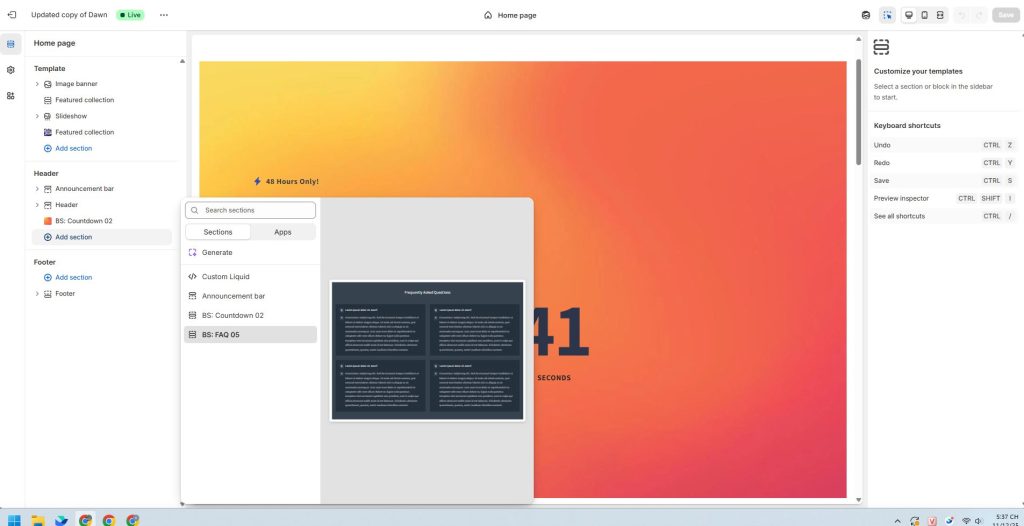
- Click Add section
- Search for or scroll to BS: FAQ 05
- Click to insert it into your layout
The FAQ layout will instantly appear in the preview panel.
Step 5: Add FAQ Items
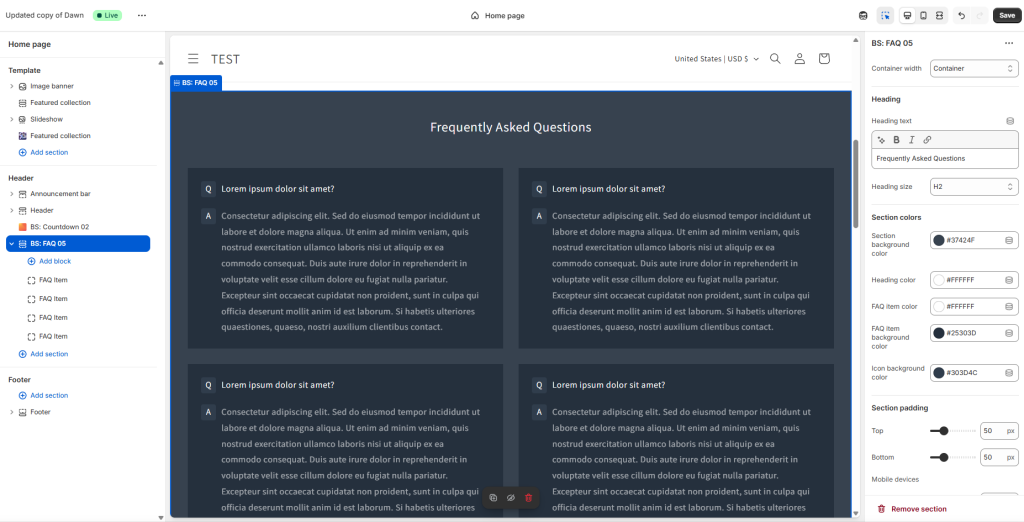
Expand the BS: FAQ 05 section in the left sidebar. You’ll see options to:
- Add block – each block represents one FAQ question and answer
- Edit existing FAQ items
- Reorder FAQ entries
Each FAQ block includes a field for the question and one for the answer, allowing you to add as many items as you need.
The design automatically arranges your FAQs into a stylish multi-column layout.
Step 6: Customize Colors, Spacing, and Typography
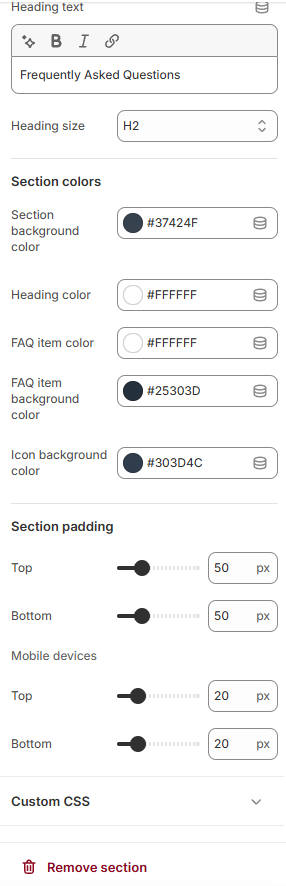
On the right side of the editor, you’ll find a powerful customization panel.
Heading Settings
- Update the main title (e.g., “Frequently Asked Questions”)
- Choose heading level (H1, H2)
Section Colors
Customize each color element, such as:
- Section background
- Text color
- FAQ item background
- Icon background (Q/A icons)
Your screenshot shows a sleek dark theme using hex colors like #37424F and #25303D.
Padding Controls
Adjust spacing:
- Desktop top/bottom padding
- Mobile top/bottom padding
This ensures your FAQ section looks balanced on every screen size.
Custom CSS (Optional)
Advanced users can add custom styling directly within the section.
Step 7: Save and Publish
Once your FAQ looks exactly how you want, click Save in the top-right corner.
If you’re creating a standalone FAQ page:
- Go to Online Store → Pages → Add page
- Name it “FAQ”
- Assign the template that contains your new FAQ section
- Add this page to your store navigation (Main Menu or Footer)
Your Shopify FAQ page is now live and fully customizable.
Example Layout Ideas Using Boostify Sections
Boostify Sections provides several ready-made FAQ templates that you can mix and match depending on your store’s needs. Based on the available designs shown in the screenshots, here are some practical layout ideas merchants can use:
- Two-column FAQ layout (FAQ 05): FAQ 05 displays your questions in a clean two-column grid, making it ideal for stores with many FAQs. This layout reduces scrolling, presents information more compactly, and looks especially professional on desktop. With adjustable colors and spacing, you can match it perfectly to your theme.
- Single-column stacked FAQ layout (FAQ 01, FAQ 02, FAQ 03): These templates use a vertical, stack-style layout where each question sits above its answer. It’s simple, lightweight, and very mobile-friendly. This is a great option for brands that want a minimalist FAQ or have fewer questions to display.
- FAQ with description and info block (FAQ 04): FAQ 04 includes a heading, optional description text, collapsible FAQ items, and an additional info block—great for stores that want to highlight contact details, support hours, or a returns reminder. It blends informational content with interactive FAQ items.
These layouts give you the flexibility to structure your FAQ page exactly the way you want—whether that means keeping things simple, presenting a large number of questions efficiently, or combining FAQs with supporting content.
SEO Checklist for Your Shopify FAQ Page
A well-optimized Shopify FAQ page doesn’t just help customers—it can also bring in highly targeted organic traffic. Use this quick checklist to make sure your FAQ page is doing its job for SEO as well as UX:
Use “Shopify FAQ page” and related phrases naturally
Mention your main keyword and related phrases (like “FAQ for Shopify store”, “shipping FAQs”, “returns FAQs”) in your headings and body copy where it makes sense. Avoid keyword stuffing—write for humans first, search engines second.
Optimize your page title and meta description
Set a clear, descriptive page title such as “FAQ – Shipping, Returns & Orders” and include your target keyword if relevant. Write a compelling meta description that explains what customers will find on the page and encourages them to click from search results.
Add internal links from key pages
Link to your FAQ page from product pages, the cart, your shipping policy, and other help-related pages. This not only improves navigation for users, but also helps search engines understand that your FAQ page is an important resource on your site.
Keep content up to date
Review your FAQ page regularly to make sure policies, prices, delivery times, and other details are still accurate. Update or add questions based on what customers are currently asking—fresh, relevant content is better for both SEO and user trust.
Common Mistakes to Avoid on Shopify FAQ Pages
Even with an FAQ page in place, certain mistakes can reduce its effectiveness and create unnecessary friction for shoppers. Avoiding these pitfalls ensures your FAQ page actually helps customers, builds trust, and supports conversions.
Here are the most common issues to look out for:
Writing vague answers that don’t really resolve concerns
If your responses are too general—like “Shipping times may vary” or “Returns depend on the situation”—customers may feel more confused than informed. Clear, specific details help set expectations and prevent misunderstandings. Whenever possible, include concrete timeframes, conditions, or next steps to eliminate uncertainty.
Overloading the page with too many ungrouped questions
A massive list of questions without categories becomes overwhelming to scroll through. Customers may give up before they find the information they need. Grouping FAQs into intuitive sections—such as Shipping, Returns, Orders, and Payments—creates structure, improves readability, and makes the page easier to navigate on both desktop and mobile.
Hiding the FAQ link where customers can’t find it
If your FAQ page is buried deep in your site or only linked from one obscure page, most visitors won’t know it exists. This leads to avoidable support questions and frustrated buyers. Place FAQ links in high-visibility areas like your footer, product pages, cart, and help menu so customers can find answers exactly when they need them.
Forgetting to test the page on mobile
Many Shopify stores receive the majority of their traffic from mobile devices, so a FAQ page designed only with desktop in mind can create a poor experience. Long paragraphs, small fonts, or elements that are hard to tap will drive customers away. Always preview your FAQ page on mobile and ensure it uses collapsible sections, proper spacing, and easy-to-read text.
Turn Your FAQ Page into a Conversion Asset
A well-structured Shopify FAQ page isn’t just “nice to have” – it can directly reduce support tickets and help more visitors feel confident enough to complete their purchase. When common questions about shipping, returns, payments, and products are answered clearly, customers spend less time hesitating and more time buying.
To get there, you need strong content and good UX: clear categories, scannable layouts, and a mobile-friendly design. If you want an easier way to achieve that, try a dedicated FAQ layout using a section-based app like Boostify Sections, so you can drop in a polished FAQ design, customize it to your brand, and turn your FAQ page into a real conversion booster.