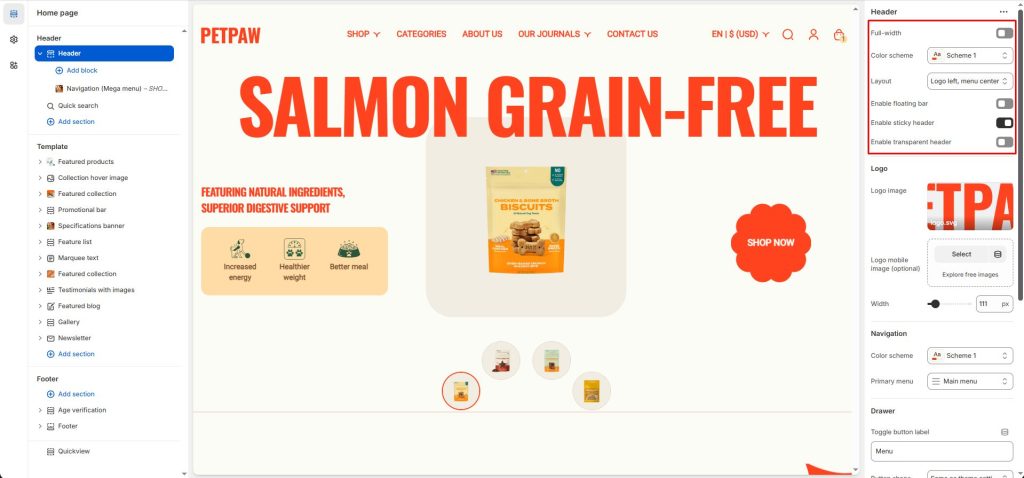
Layout: Select to change the design you want.
Enable floating bar: Select/deselect to show/hide the floating header.
Enable sticky header: Select/deselect to show/hide the sticky header. This sticky header appears when users scroll the page.
Enable Transparent Header: Enable the “Transparent Header” feature to make the header background transparent, creating a smooth effect with the background image behind.
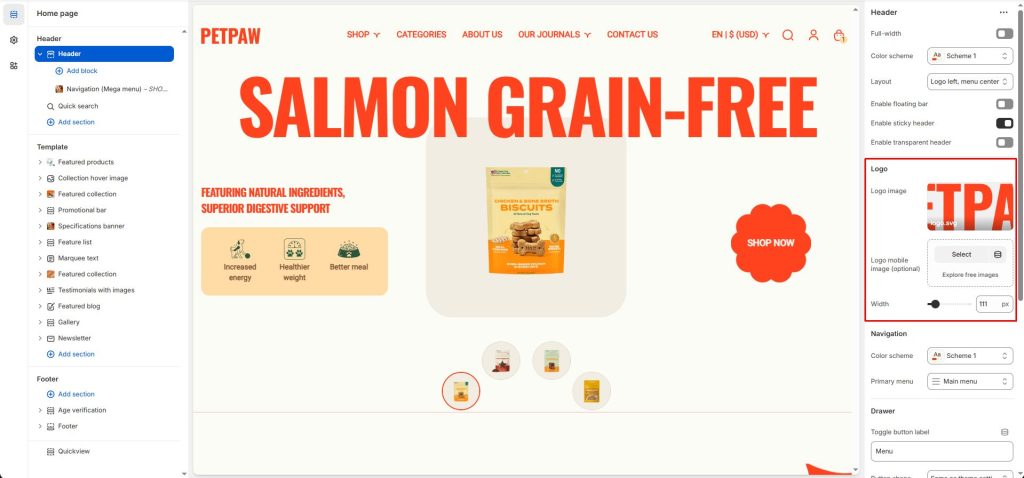
Logo
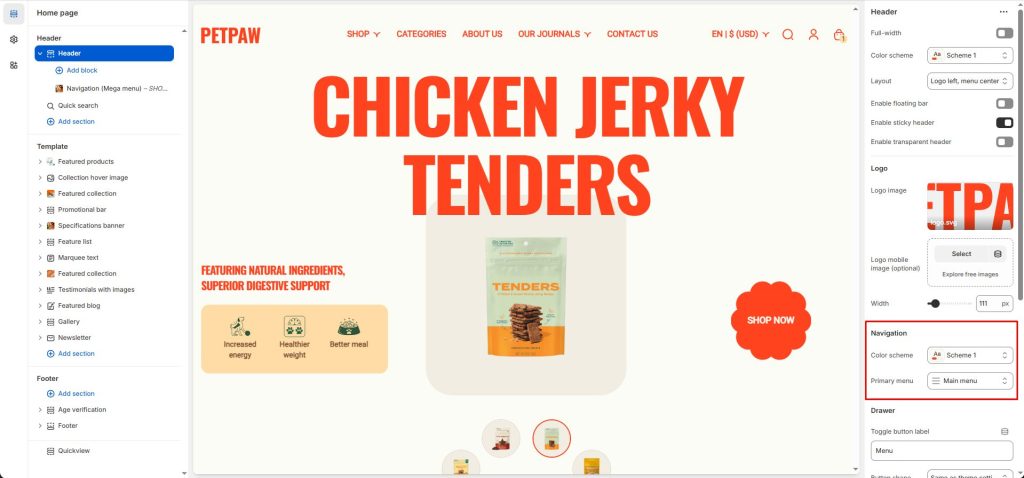
Logo image: Upload the image file of your logo in this area to set it globally on the header of every page.
Logo mobile image: Optionally you can override the Logo image that mobile users will see.
Width: Adjust the maximum width of your logo.
Navigation
Primary menu: The main menu of your shop.
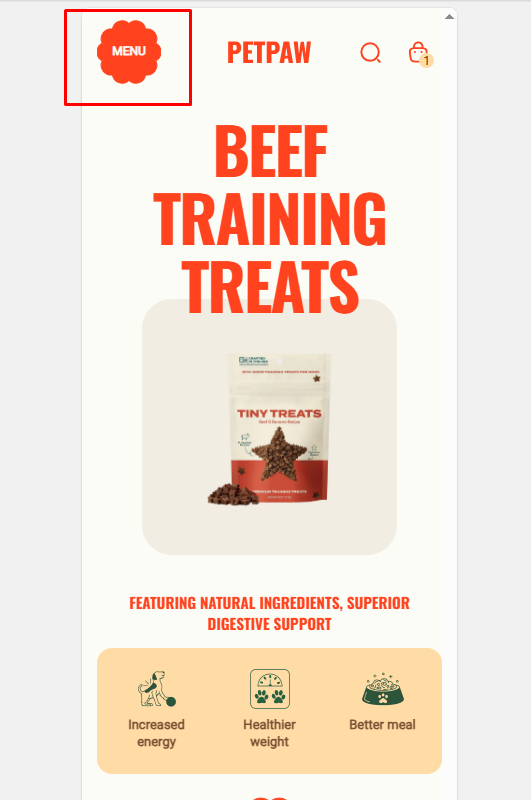
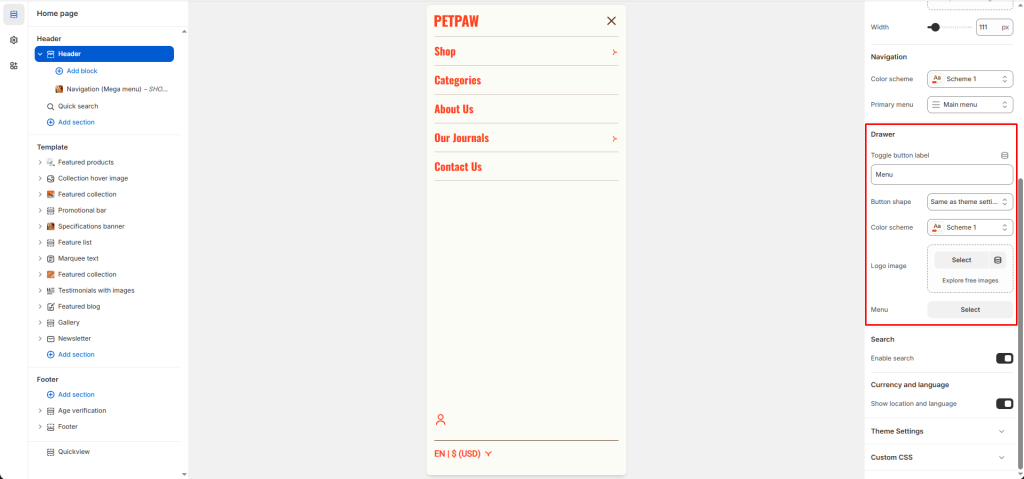
Drawer
Menu: Optionally you can override the Primary Menu as the menu that mobile users will see. Helpful in case you want your mobile menu to be simpler or different. It is highly recommended that you leave this empty and use the Primary menu instead for SEO purposes since Google predominantly uses the mobile version for indexing.
Search
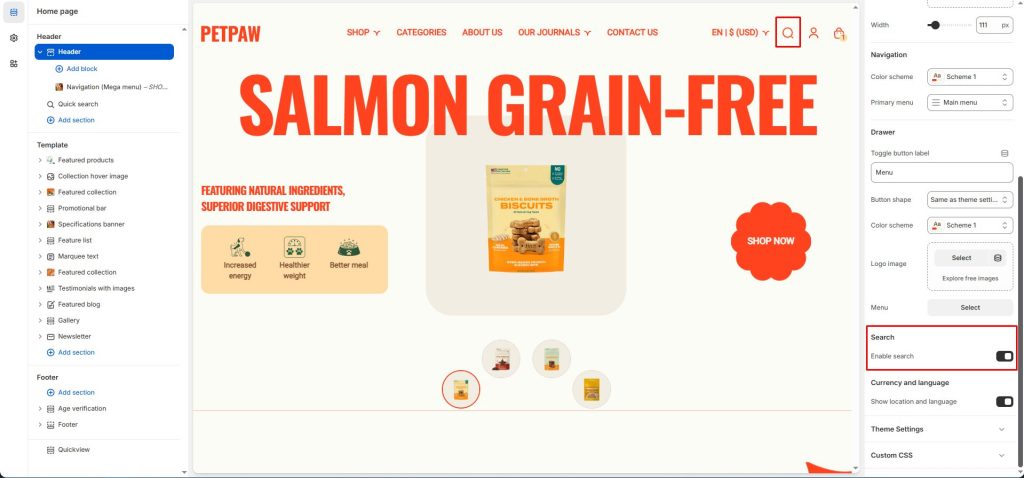
Enable search: Option to enable/disable search form.
To customize the search form, you need to go to the Quick search section.
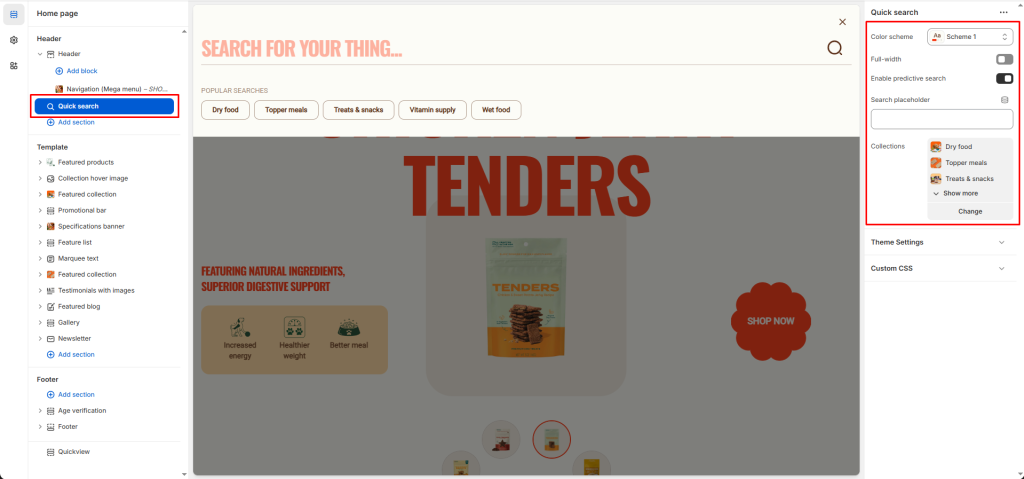
Enable predictive search: Enable/disable suggestions while searching.
Search Placeholder: Set the text displayed in the search input field when no keyword has been entered. This placeholder text serves as a prompt or suggestion for what users can search for, improving user experience and making the search interface more intuitive.
Collections: Select collections to suggest before performing a search.
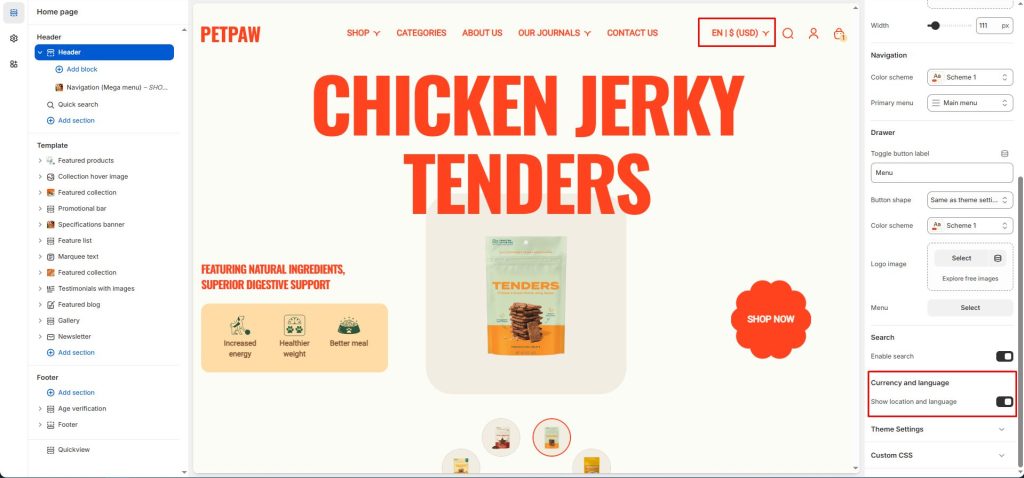
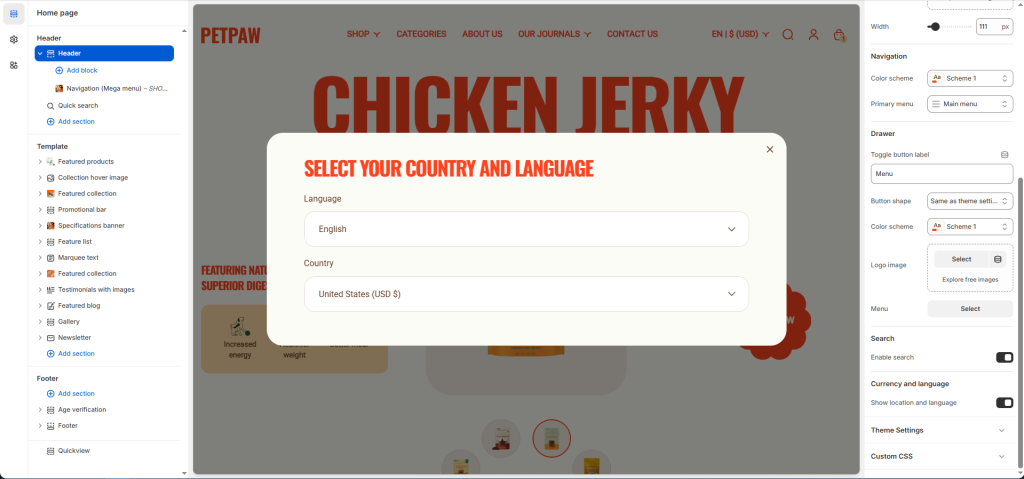
Currency and language
Show location and language: Enable/disable to change your currency and language.