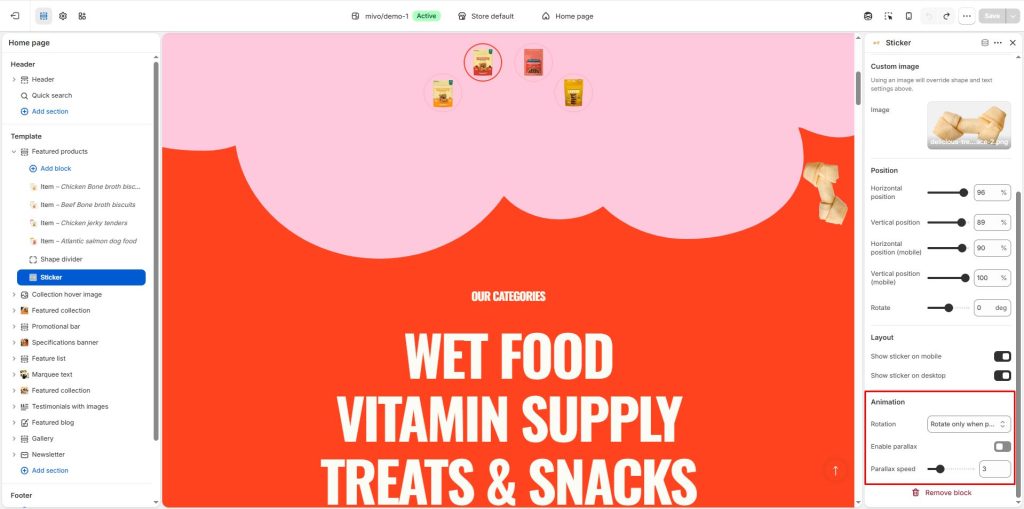
The Mivo theme provides shape divider and sticker blocks within sections, allowing you to add curved dividers with scrolling effects, as well as animated stickers, to create a unique brand experience.
Shape divider
You can add Shape divider blocks inside any appropriate section.
To add a Shape divider block to a section:
In Theme editor, select an appropriate section from the side menu.
Note: Shape divider blocks can be added into most sections. But Shape divider blocks cannot be added to all sections.
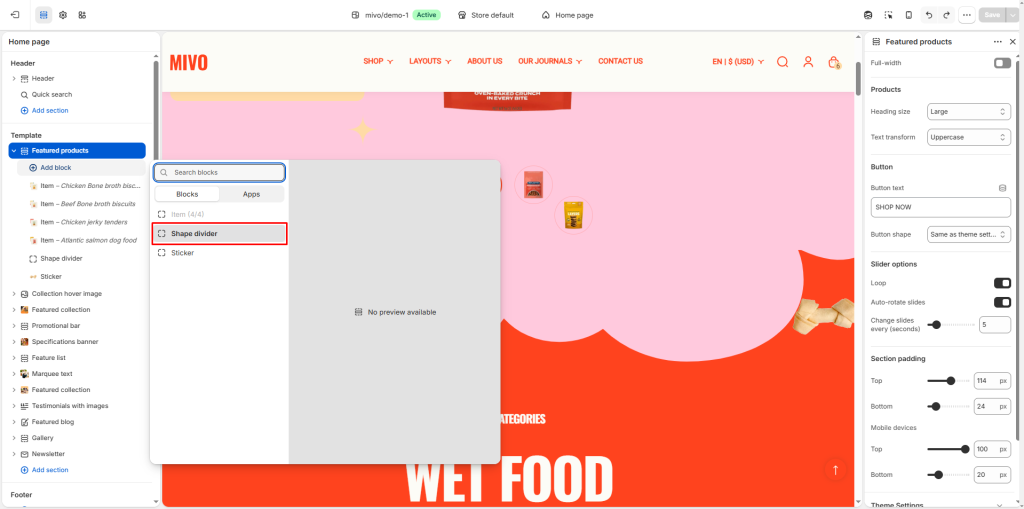
Select Add block, and then choose a Shape divider block.
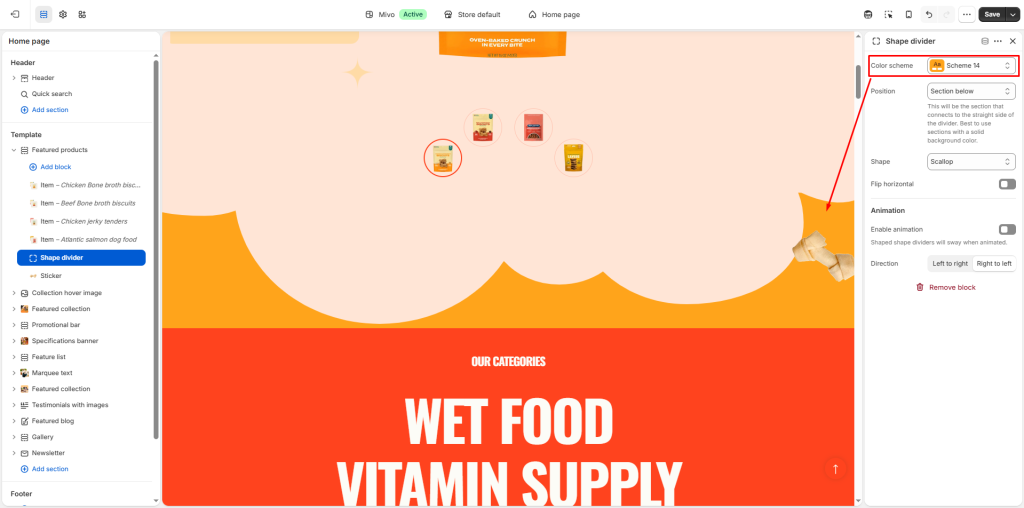
You can customize the color for the shape divider.
Note: You should match the color of the shape divider to the section it adjoins for a more consistent and visually appealing look.
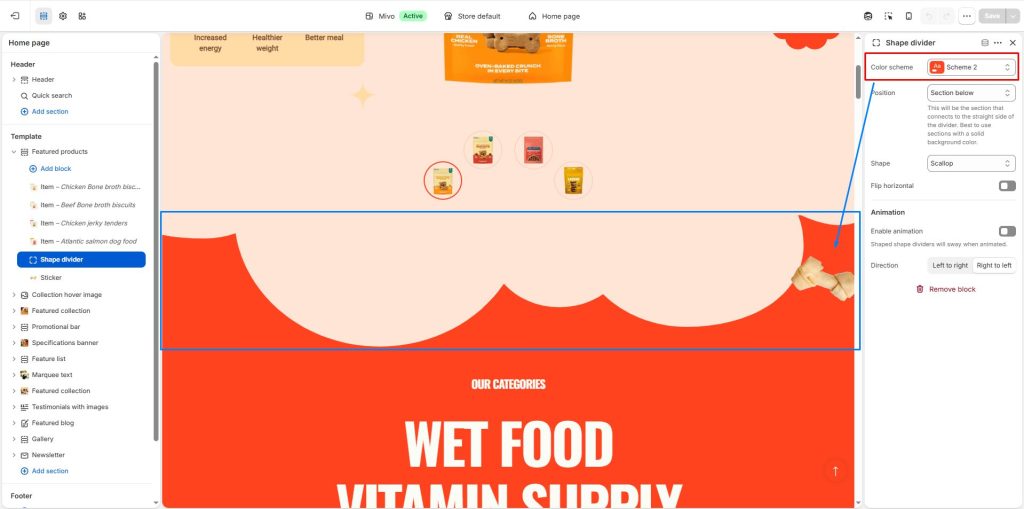
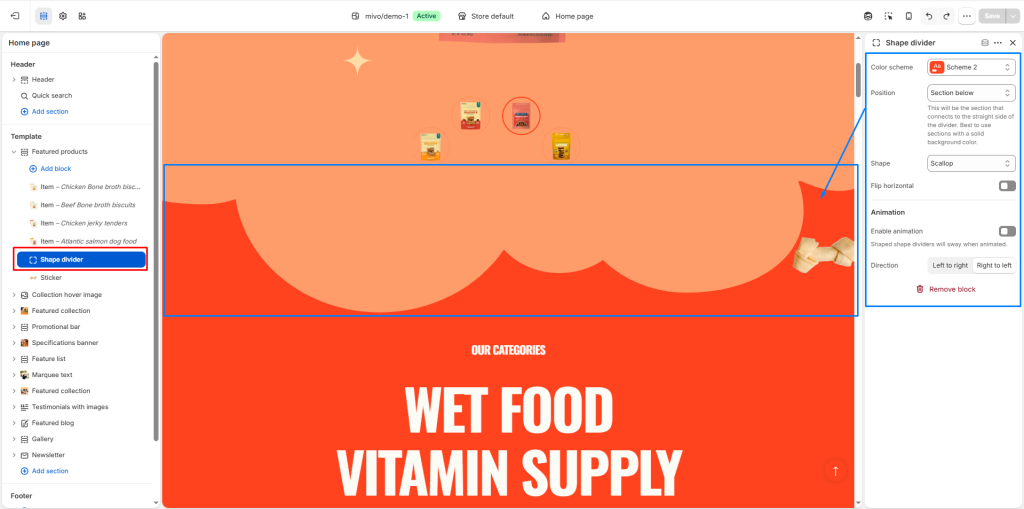
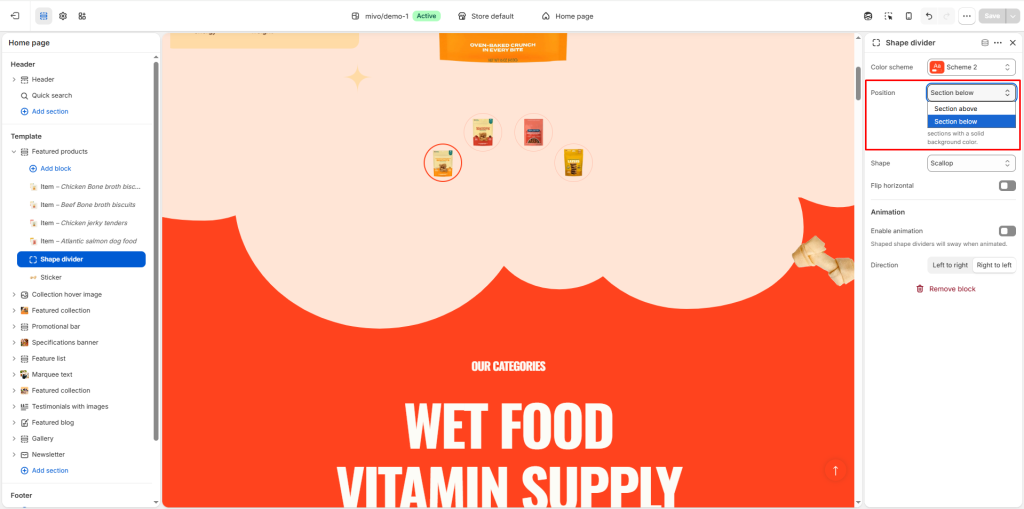
Next, choose where it will appear in the section. When you add a shape divider block to a section, set the divider to target the section above or below the block.
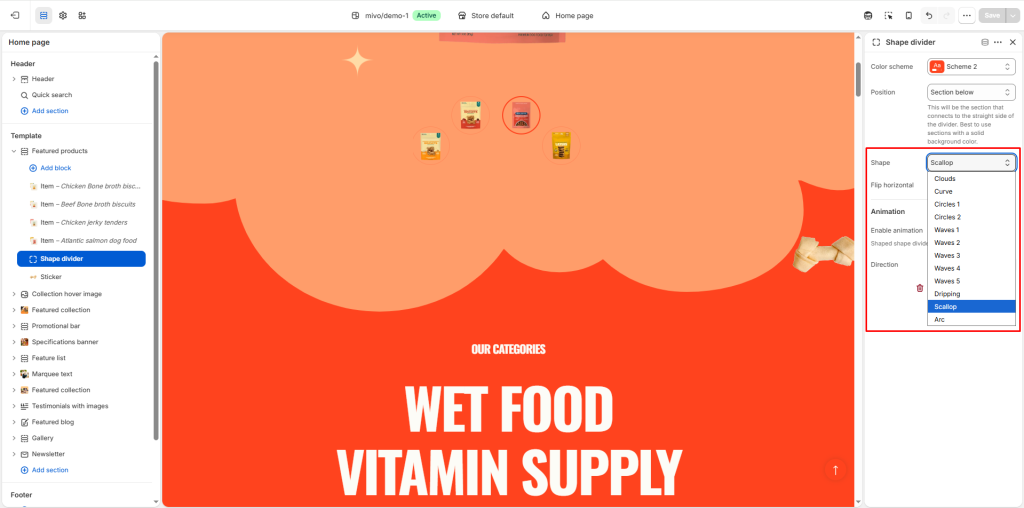
Next, choose the type of shape divider you want.
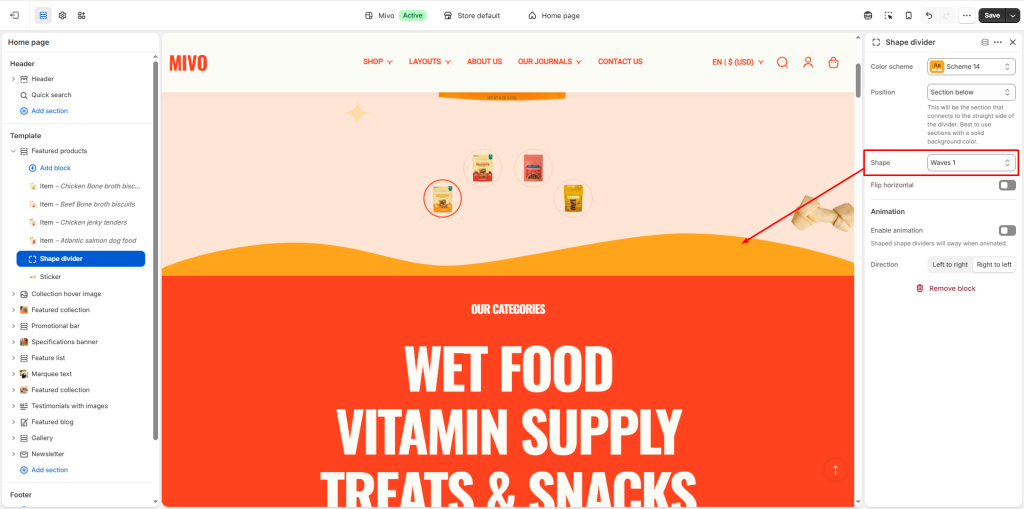
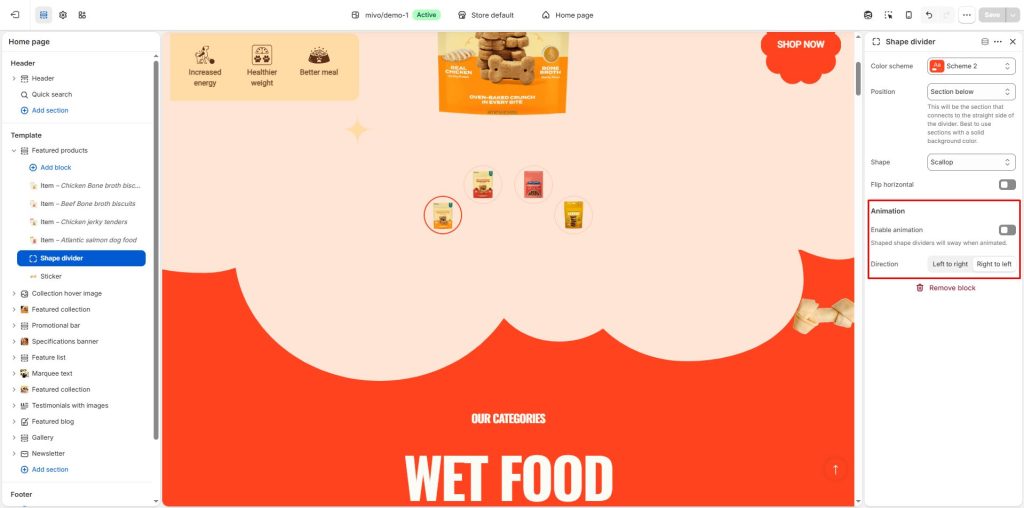
Flip horizontal: Select the Flip horizontal checkbox to flip/unflip the divider along the y-axis (horizontally). This setting applies only to asymmetrical divider style types.
Enable animation: Select the Enable animation checkbox to show/hide divider animation effects. If enabled, symmetrical divider shapes move in one direction, and asymmetrical divider shapes sway.
Direction: Use the Direction options to set the direction of the animation to move from Right to left or Left to right. To use this option, set the Enable animation checkbox to on.
Sticker
You can add Sticker blocks inside any appropriate section.
To add a Sticker block to a section:
In Theme editor, select an appropriate section from the side menu.
Note: Sticker blocks can be added into most sections. But Sticker blocks cannot be added to all sections.
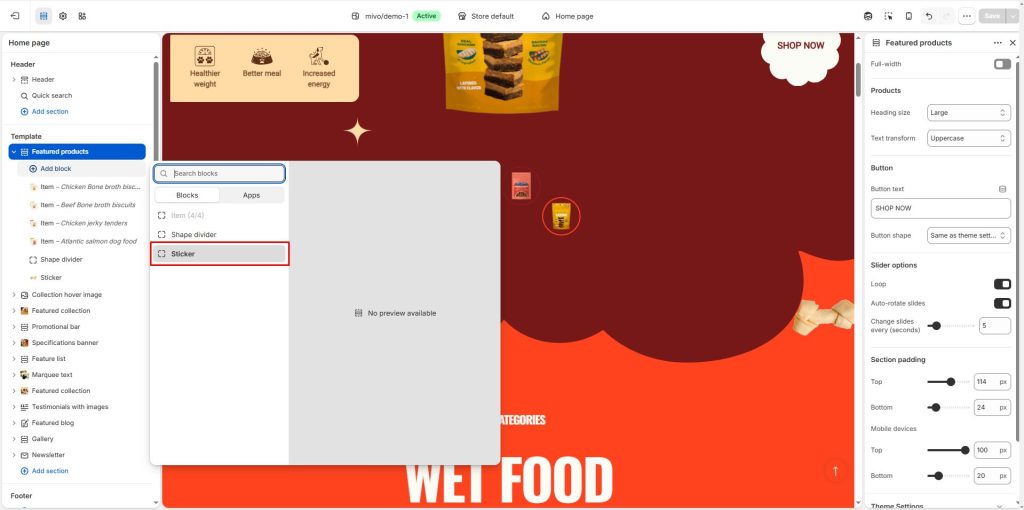
Select Add block, and then choose a Sticker block.
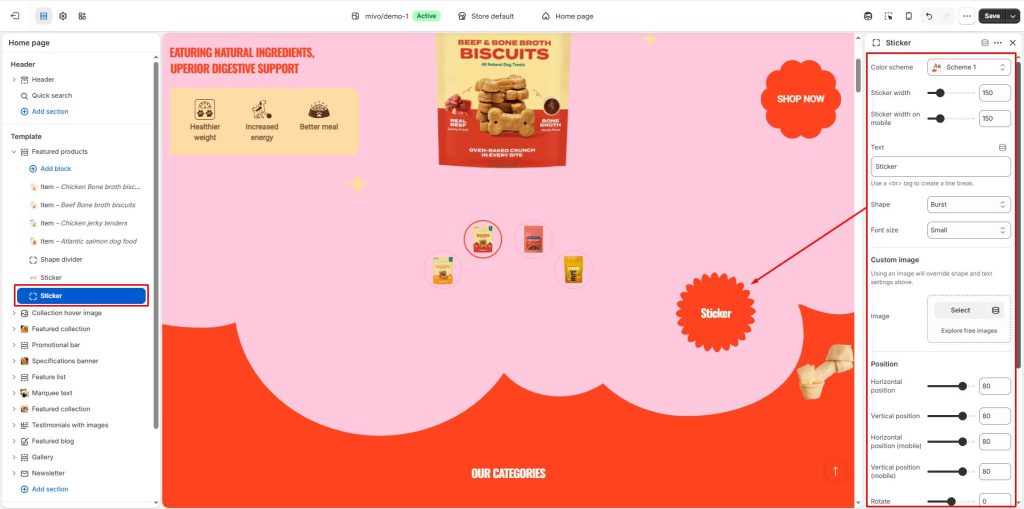
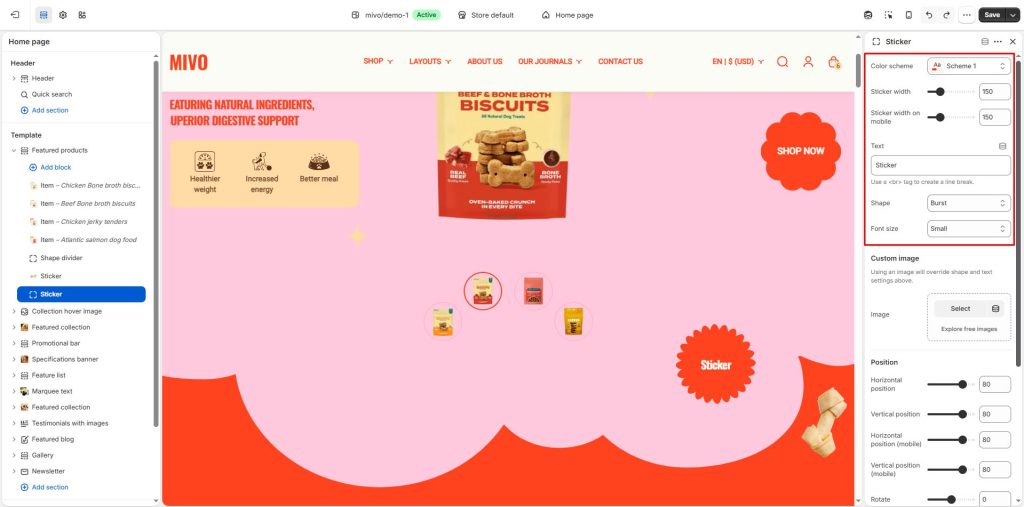
You can customize the color for the sticker.
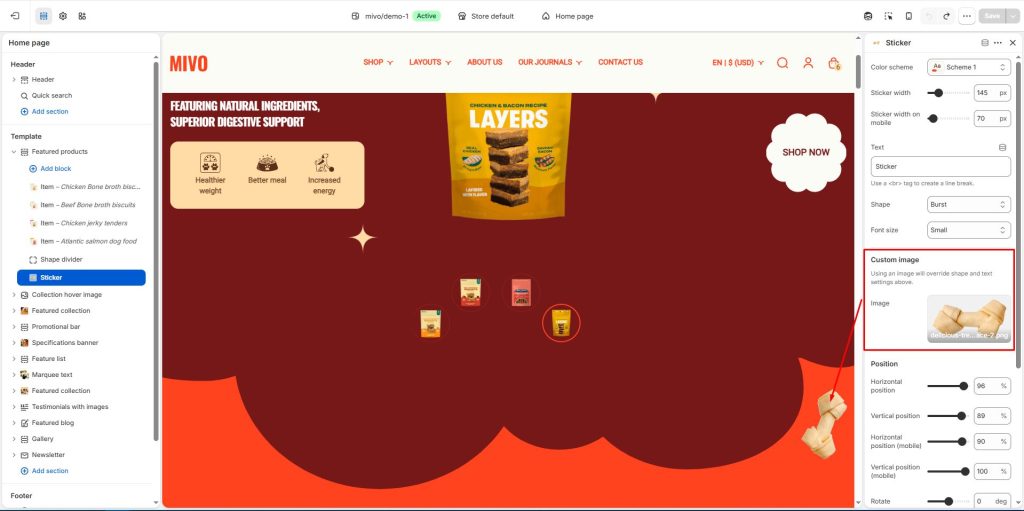
Sticker width: Adjust the Sticker width slider set the width of the block. The slider ranges from 50 to 500.
Sticker width on mobile: Adjust the slider to set the width of the block on mobile. The slider ranges from 50 to 500.
Text: In the Text box, enter text to display inside the block. To display the block’s text across multiple lines, force a line break by adding a HTML line break tag <br> at the end of each new line of text inside the Text box.
Shape: Use the Shape options to specify a shape for the block to use.
Font size: Use the Font size options to specify a size for the block’s text. The font size is scaled relative to the sticker’s width. For best results, apply this setting after you set your sticker’s text and shape. The options are Small, Medium, and Large.
Custom image > Image: Use the Image selector options to set up an image to use inside the block. When you upload an image, the block’s text and shape are replaced by the image.
Position:
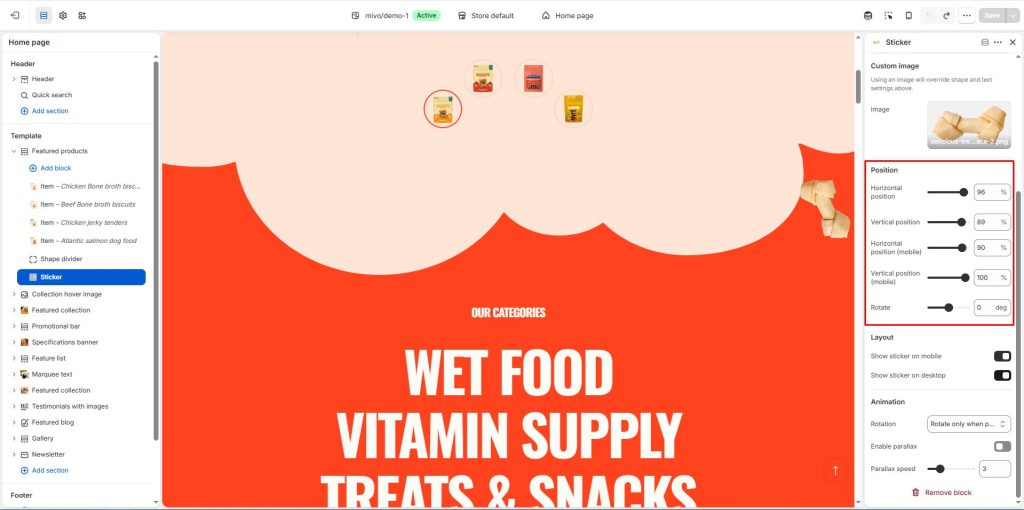
Horizontal position, Horizontal position (mobile): Adjust the slider to position the block along the x-axis inside the section. The slider ranges from 0 to 100.
Vertical position, Vertical position (mobile): Adjust the slider to position the block along the y-axis inside the section. The slider ranges from 0 to 100.
Rotate: Adjust the Rotate slider to rotate the block inside the section. The slider ranges from -90 to 90 degrees.
Layout:
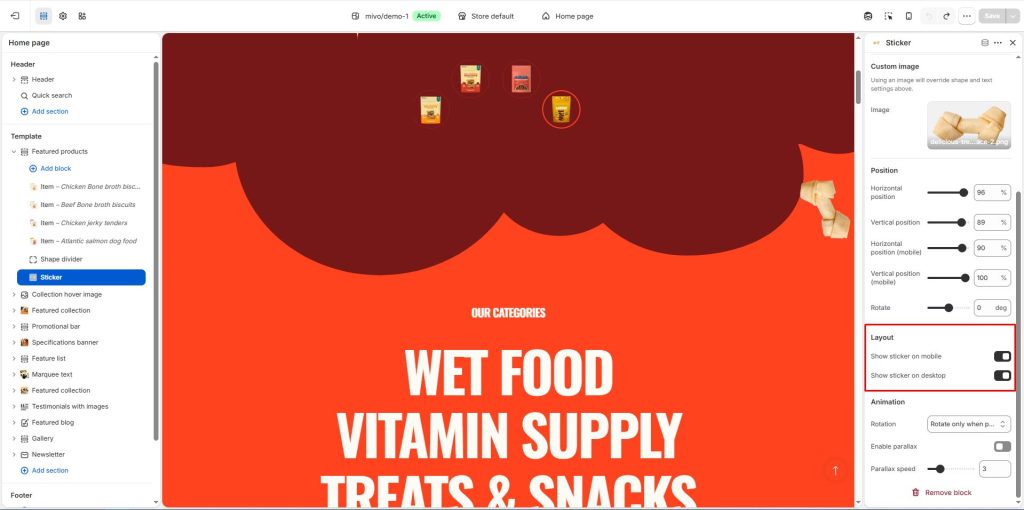
Show sticker on mobile: Select the checkbox Show sticker on mobile to show/ hide the block on mobile display devices.
Show sticker on desktop: Select the checkbox Show sticker on desktop to show/ hide the block on desktop display devices.
Animation:
Rotation: Use the Rotation options to setup an animation that rotates the block. The options are No rotation (default), Constantly rotate or Rotate only when page is scrolling.
Enable parallax: Select the checkbox Enable parallax to turn on/off a parallax animation effect. If you enable this option, the block’s content scrolls slower than the rest of the page.
Parallax speed: Adjust the Parallax speed slider to set a speed for the parallax animation (if enabled). The slider ranges from 1 to 10.