
The Header section shows your logo, main menu, search, account and cart icons at the top of every page. It supports four layouts, mega menus, a transparent mode and a dedicated mobile menu.

Open the Header settings
- From your Shopify admin, go to Online Store > Themes.
- Next to the Modudesk theme, click Customize.
- In the left sidebar, under Header, click Header.
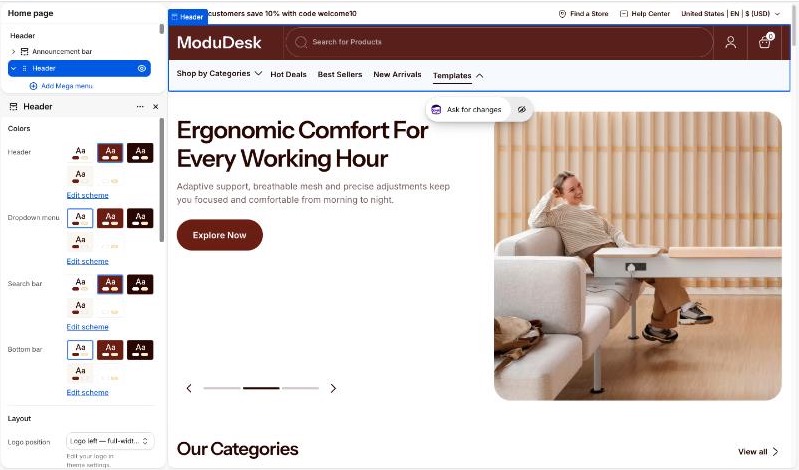
The Header sits in the header group, so the same header appears on every page. To hide it temporarily, click the eye icon next to it.
Choose a layout
- Open the Header settings.
- Under Layout, choose a Logo position:
- Logo left — inline menu: logo, menu and icons on one row.
- Logo center — split menu: centered logo with a bottom bar for the secondary and utility menus.
- Logo left — category search bar: a search bar next to the logo, with the menu in a bottom bar.
- Logo left — full-width search: a wide search bar next to the logo, with the menu in a bottom bar.
- Click Save.
To change the logo image itself, go to Theme settings > Logo.
Set up the menus
- Create your menus first in Online Store > Navigation.
- In the Header settings, under Menu, pick the Main menu.
- For the layouts with a bottom bar, you can also pick a Secondary menu (left side, Logo center layout only) and a Utility menu (right side, top-level items only).
Icons and badges in menu titles: start a main menu item’s title with a word in square brackets. If the word is an icon name, the icon is shown before the title. Otherwise the word is shown as a small badge, e.g. [New]Best Sellers.
Add a mega menu
- In the sidebar, expand Header and click Add Mega menu.
- In Menu item, type the exact title of the top-level item in your main menu, e.g. Shop by Categories. Upper and lower case don’t matter.
- Choose a Layout and fill in the menus, collection and banner (see the table below).
- Hover over that menu item on your store to check the result, then click Save.
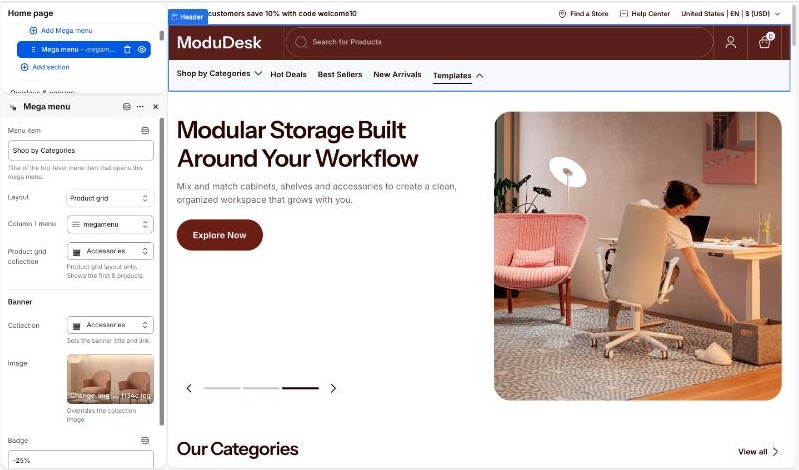
Add one Mega menu block for each top-level menu item that should open a mega menu.
Section settings
Colors
| Setting | Description |
|---|---|
| Header | Color scheme of the main header row. Default: Scheme 1 |
| Dropdown menu | Color scheme of dropdowns and mega menus. Default: Scheme 1 |
| Search bar | Color scheme of the search bar. Shown for the search layouts or when the mobile search is on. Default: Scheme 1 |
| Bottom bar | Color scheme of the bottom bar. Shown for every layout except Logo left — inline menu. Default: Scheme 1 |
Layout
| Setting | Description |
|---|---|
| Logo position | Header layout (see Choose a layout). Default: Logo left — inline menu |
| Search placeholder | Text inside the search bar. Default: Search for Products |
| Full width | Stretch the header to the edges of the screen. Default: Off |
| Sticky header | None, On scroll up (shows the header when the visitor scrolls up), or Always. Default: On scroll up |
| Separator line | Show a line under the header. Default: On |
| Uppercase top-level menu items | Show the main menu items in capital letters. Default: Off |
The category search bar lists your product types. To filter search results by type, add the Product type filter in the Search & Discovery app.
Menu
| Setting | Description |
|---|---|
| Main menu | The main navigation menu. Default: Main menu |
| Secondary menu | Shown on the left of the bottom bar. Logo center layout only. |
| Utility menu | Shown on the right of the bottom bar. Top-level items only. |
Transparent header
Make the header background transparent on selected pages. Available for the Logo left — inline menu and Logo center layouts only.
| Setting | Description |
|---|---|
| Home page | Transparent header on the home page. Default: Off |
| Collection pages | Transparent header on collection pages. Default: Off |
| Other pages | Choose a menu that links to the pages where the header should be transparent. |
| Text color | Text and icon color while the header is transparent. Default: #969696 |
| Logo | Replaces the default logo while the header is transparent. |
| Mobile logo (optional) | Transparent logo for mobile. |
Actions
| Setting | Description |
|---|---|
| Cart | Show the cart icon. Default: On |
| Search | Show the search icon. The search layouts always show a search bar instead. Default: On |
| Account | Show the account icon. Default: On |
| Localization selectors | Country/language/currency selector style: Use theme setting, Disabled, or one of three display styles. Default: Use theme setting |
Mobile
| Setting | Description |
|---|---|
| Menu icon position | Left or Right. Default: Left |
| Logo position | Left or Center. Default: Left |
| Search style | Hidden, or Show a search bar on mobile. Default: Hidden |
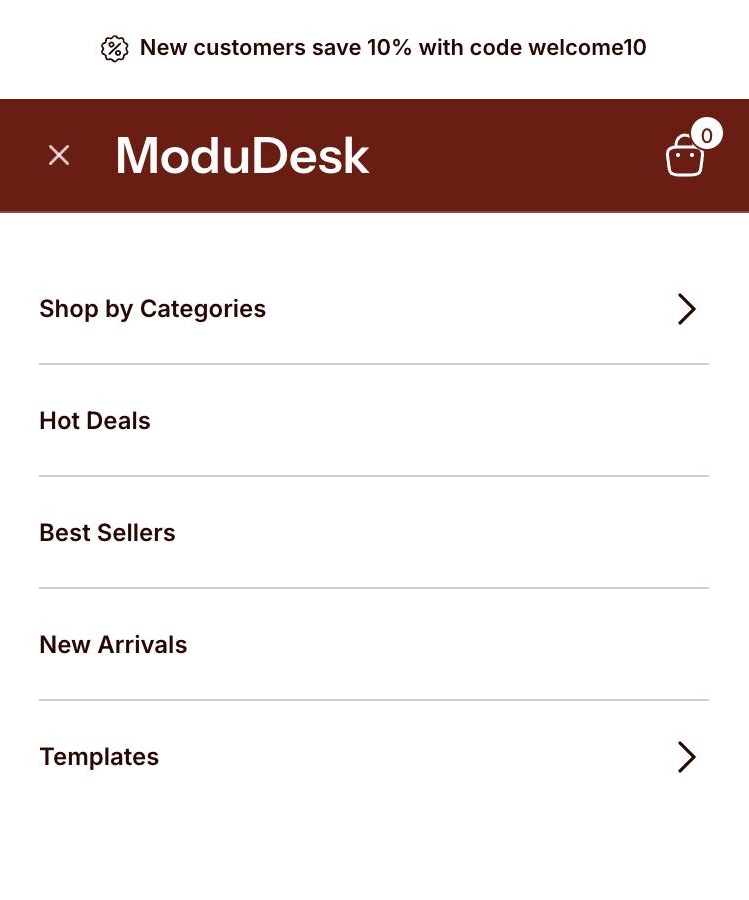
| Mobile menu footer | Menu shown at the bottom of the mobile menu. Top-level items only. Add an icon by starting the link title with its name, e.g. [location] Find a store. |
Mega menu block settings
| Setting | Description |
|---|---|
| Menu item | Title of the top-level menu item that opens this mega menu. |
| Layout | Columns: up to two link columns plus groups. Shop all: a heading, description and button plus groups. Product grid: one link column plus a grid of products. Default: Columns |
| Column 1 menu | Links in the first column. Columns and Product grid layouts. |
| Column 2 menu | Links in the second column. Columns layout only. |
| Groups menu | Each top-level item becomes a group heading over its child items. Columns and Shop all layouts. |
| Product grid collection | Product grid layout only. Shows the first 8 products. |
| Heading / Description | Text for the Shop all layout. |
| Button label / Button link | Button for the Shop all layout. |
| Banner – Collection | Sets the banner title and link. |
| Banner – Image | Overrides the collection image. |
| Banner – Badge | Small label on the banner, e.g. -25%. |
Tips
- If a mega menu doesn’t open, check that Menu item matches the menu title exactly (spaces included).
- Set the transparent header only on pages whose first section is a full-width image or video, otherwise the text may be hard to read.
- Upload a light version of your logo in Transparent header > Logo when the header sits on a dark image.