
- eight for desktop and the Height on mobile, then click Save.
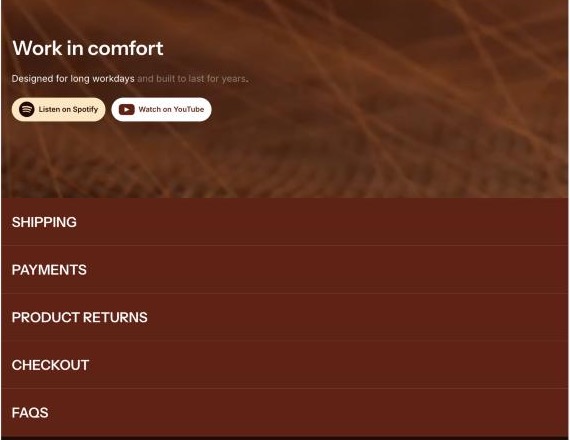
The video plays automatically, muted and in a loop, with no player controls. It zooms out slightly when it scrolls into view.
Make the text easy to read
- Under Overlay, turn on Enable overlay.
- Choose a Type: a gradient from one side (Top to bottom, Bottom to top, Left to right, Right to left) or a Full overlay over the whole video.
- Set the Opacity and Color of the overlay.
- Under Content, choose where the text sits with Horizontal position and Vertical position.
Add a menu below the video
- Create the menu first in Online Store > Navigation. Only top-level items are shown.
- Under Bottom navigation, pick the Menu.
- Choose its Color scheme and whether the links are in capital letters, then click Save.
Section settings
| Setting | Description |
|---|---|
| Color scheme | Text colors of the section. Default: Scheme 1 |
| Full width | Stretch the section to the edges of the screen. Default: On |
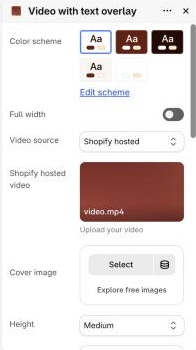
| Video source | Vimeo or Youtube, or Shopify hosted. Default: Vimeo or Youtube |
| Vimeo or Youtube video URL | Link to the video. Default: Sample YouTube video |
| Shopify hosted video | Upload your video. |
| Cover image | Image shown before the video starts, or when there is no video. |
| Height | Height on desktop: Small (540px), Medium (720px), Large (860px) or Full-height (the height of the screen). Default: Medium |
| Height on mobile | Height on screens narrower than 992px: Small (300px), Medium (360px), Large (480px) or Full-height. Default: Medium |
Overlay
| Setting | Description |
|---|---|
| Enable overlay | Add a color layer between the video and the text. Default: On |
| Type | Top to bottom, Bottom to top, Left to right, Right to left, or Full overlay. Default: Top to bottom |
| Opacity | How strong the overlay is (0–100%). Default: 30% |
| Color | Color of the overlay. Default: #140401 |
Content
| Setting | Description |
|---|---|
| Horizontal position | Left, Center or Right. The text is aligned to the same side. Default: Left |
| Vertical position | Top, Middle or Bottom. Default: Middle |
Bottom navigation
| Setting | Description |
|---|---|
| Color scheme | Colors of the menu. Default: Scheme 2 |
| Menu | Menu shown below the video. Leave empty to hide it. |
| Uppercase menu | Show the menu links in capital letters. Default: On |
Section padding
| Setting | Description |
|---|---|
| Top / Bottom | Space above and below the section on desktop (0–100px). Default: 0px / 0px |
| Mobile devices – Top / Bottom | Space above and below the section on mobile (0–100px). Default: 0px / 0px |
Block settings
Every block also has a Padding bottom setting (0–100px) for the space below it.
Heading
| Setting | Description |
|---|---|
| Heading | The heading text. The section can have one Heading block. Default: Video with text overlay |
| Font size | Small, Medium or Large. Default: Medium |

Text
| Setting | Description |
|---|---|
| Text | The description text. Words inside square brackets are shown in a lighter color, e.g. Built to last [for years].Default: Placeholder text |

Button
A Button block holds up to two buttons. Each button shows a social media icon before its label.
| Setting | Description |
|---|---|
| Social icon | Icon of the first button: X / Twitter, Facebook, Pinterest, Instagram, TikTok, Tumblr, Snapchat, YouTube, Vimeo or Spotify. Default: Spotify |
| Button label | Text of the first button. Leave blank to hide it. Default: Button label |
| Button link | Page the first button links to. |
| Button style | Primary or Secondary. Default: Secondary |
| Second button | The same settings for the second button: Social icon, Button label, Button link and Button style. Default: YouTube, Button label, Primary |

You can also add app blocks from installed apps that support them.
Tips
- Use a short video of 10–30 seconds that still makes sense without sound, since it always plays muted.
- Always add a Cover image: it is shown while the video loads, and stays visible if the video can’t play.
- Line breaks in the text are removed on mobile so the text wraps naturally.