Navigation
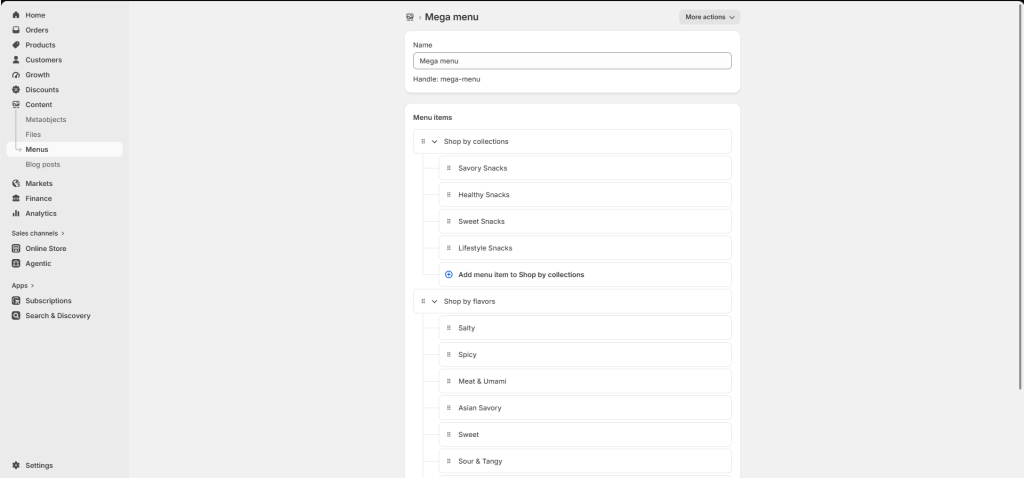
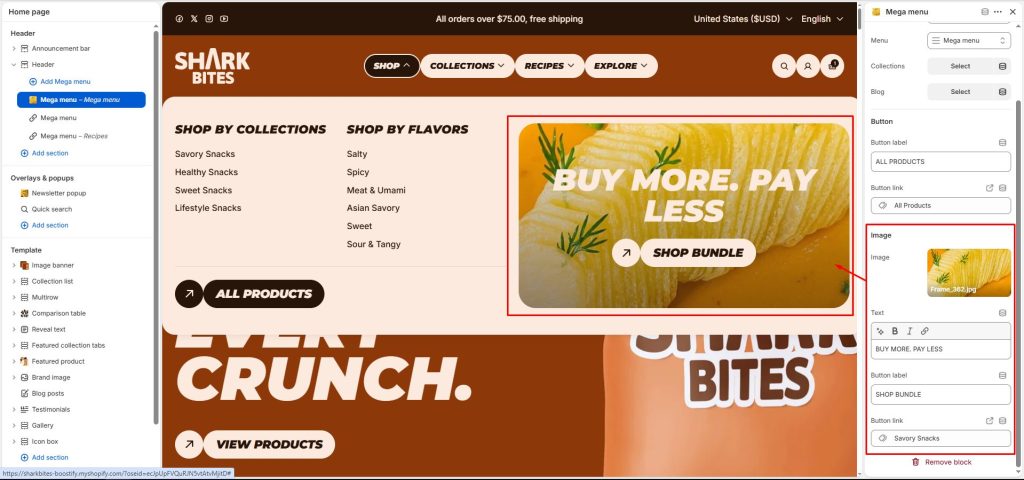
1. To show mega menu layouts, create a multi-level dropdown menu first.
2. From your Shopify admin, go to Online Store -> Themes.
3. Find the theme you want to edit, then click Edit theme.
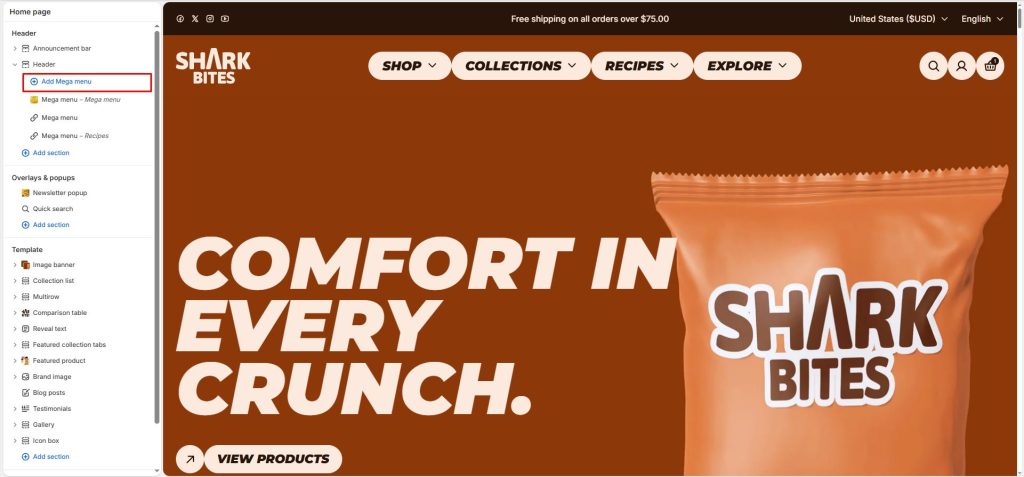
4. In the Header section on the left editor window -> Click + Add Mega menu.
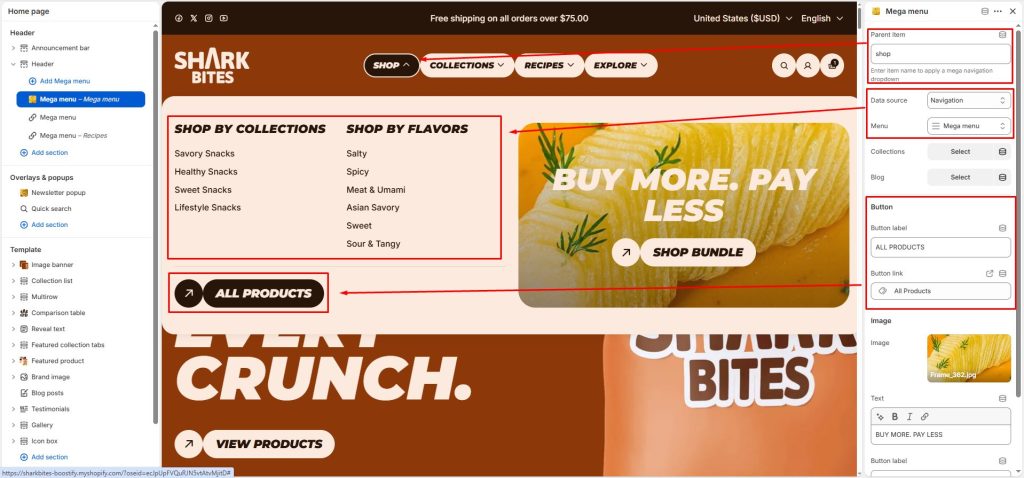
5. Set up Mega menu
- Add parent item: item name to apply a mega navigation dropdown
- Select Navigation as the data source.
- Select your mega menu created
- Enter text, button, select image
Collections
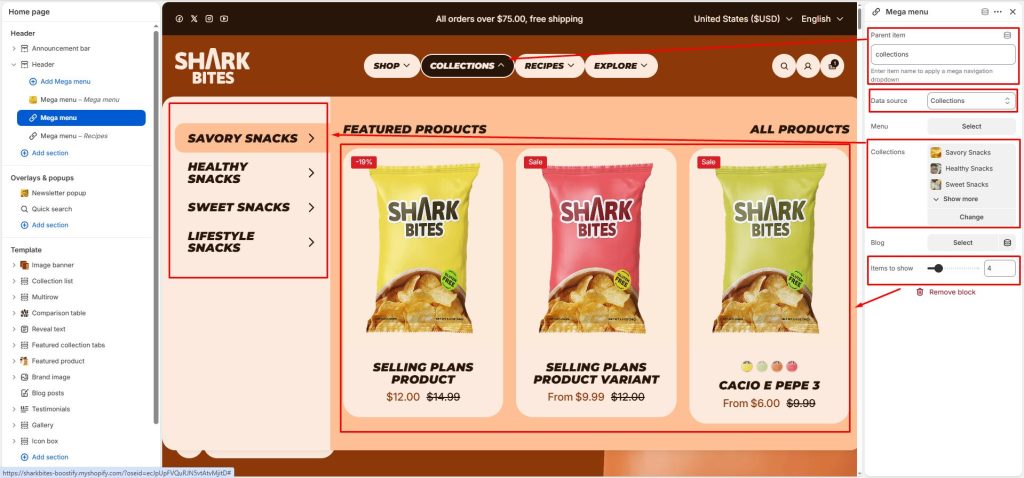
1. In the Header section on the left editor window -> Click + Add Mega menu.
2. Set up Mega menu
- Add parent item: item name to apply a mega navigation dropdown
- Select Collections as the data source.
- Select the collections to display as tabs in the mega menu.
- Adjust the maximum number of products displayed in each tab.
Blog
1. In the Header section on the left editor window -> Click + Add Mega menu.
2. Set up Mega menu
- Add parent item: item name to apply a mega navigation dropdown
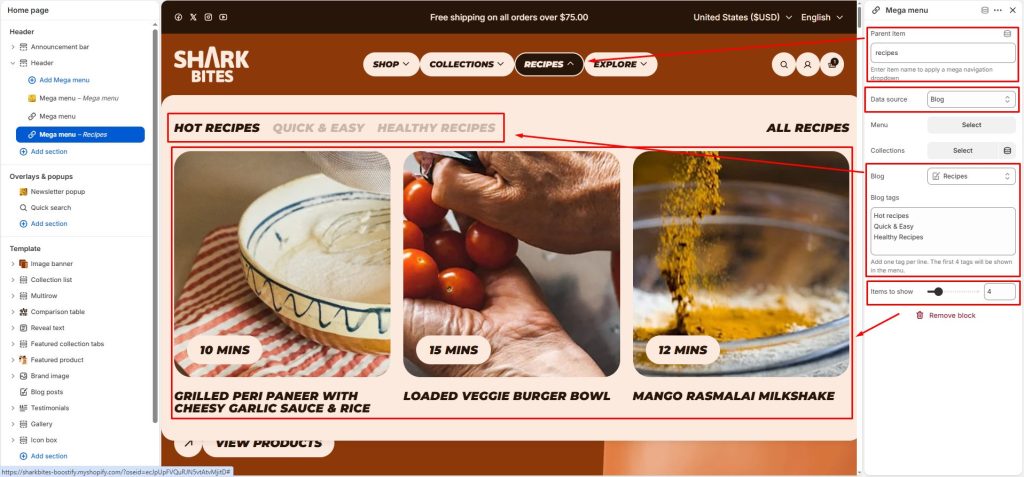
- Select Blog as the data source.
- Select the blog to display in the mega menu.
- Enter the blog tags to display as tabs in the mega menu. Make sure to enter the exact blog tag names so that the correct posts associated with each tag are displayed. You can display up to 4 tags. If left blank, the mega menu will display the selected blog normally without tabs.
- Adjust the maximum number of posts displayed in the mega menu.