
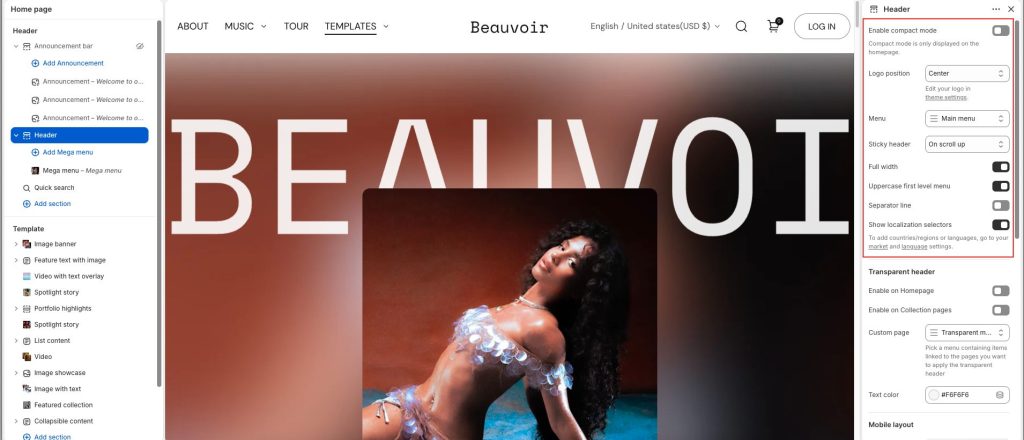
Enable compact mode: only displayed on the homepage. When active, compact mode has the Show logo in compact mode option.
Logo position: 3 options to select: left, center, and top center.
Enable floating bar: Select/deselect to show/hide the floating header.
Sticky header: This sticky header appears when users scroll the page. Choose active sticky when on scroll up, Always show, or None.
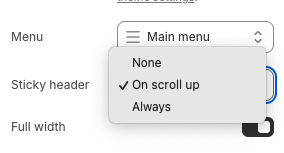
Menu: select the menu for the header and use Uppercase first level menu to change text style.
Separator line: separate the header from the page content
Show localization selectors: Enable/disable to display countries/regions or languages.
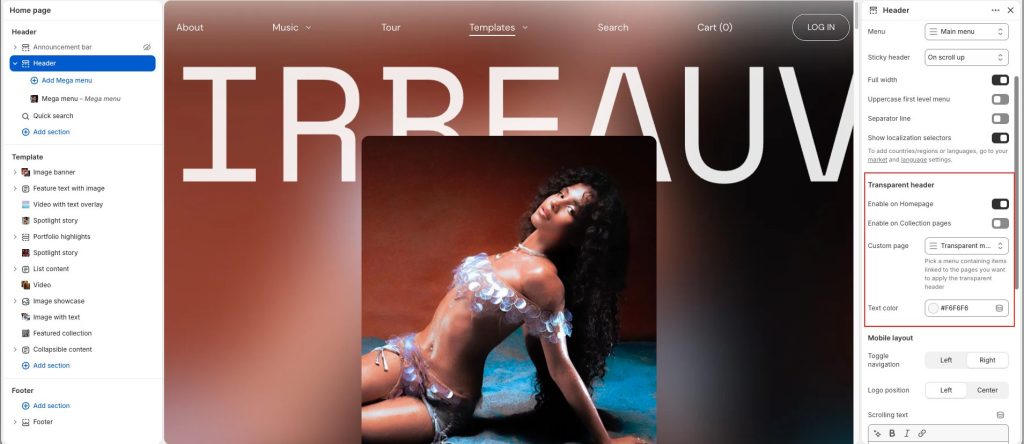
Transparent header
Enable on Homepage: only show transparent on homepage
Enable on Collection pages: all collection pages will have a transparent header when the option is active
Custom page: select a menu that will show a transparent header
Text color: Change the text color for pages when enabling the transparent header
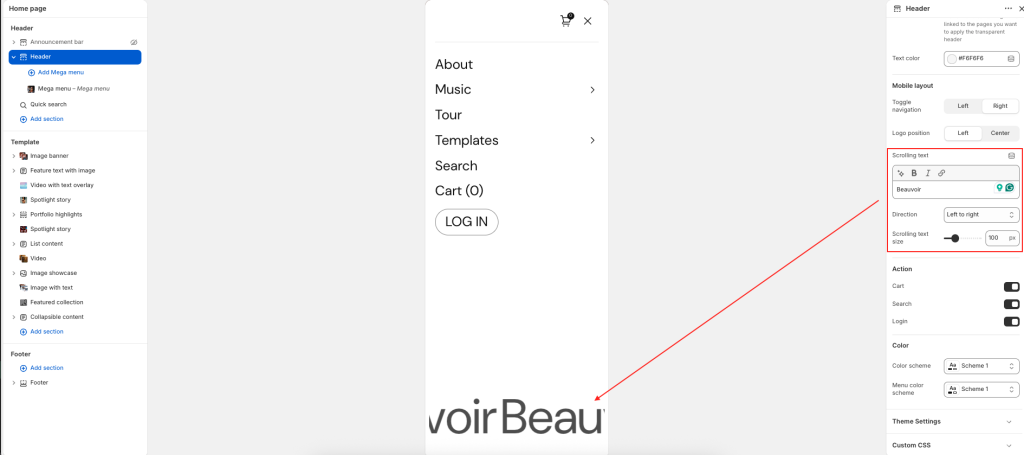
Mobile layout
Toggle navigation: Select left and right placement.
Logo position: Set the logo to the left or center on the mobile screen.
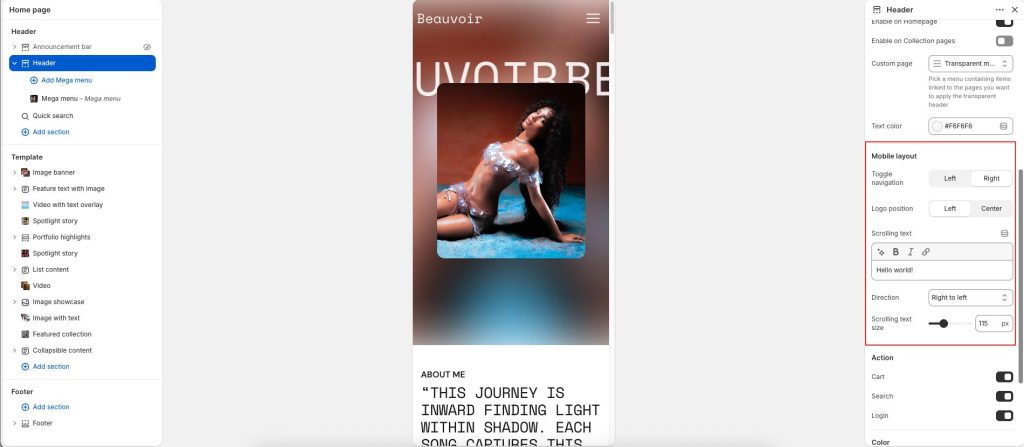
Scrooling text: Add a scrooling text to display. The text can set the scrolling text to move from Right to left or Left to right, and choose Scrolling font size.
Action
Cart, Search and Login: Options to enable/disable on header.
To customize the search form, you need to go to the Quick search section.
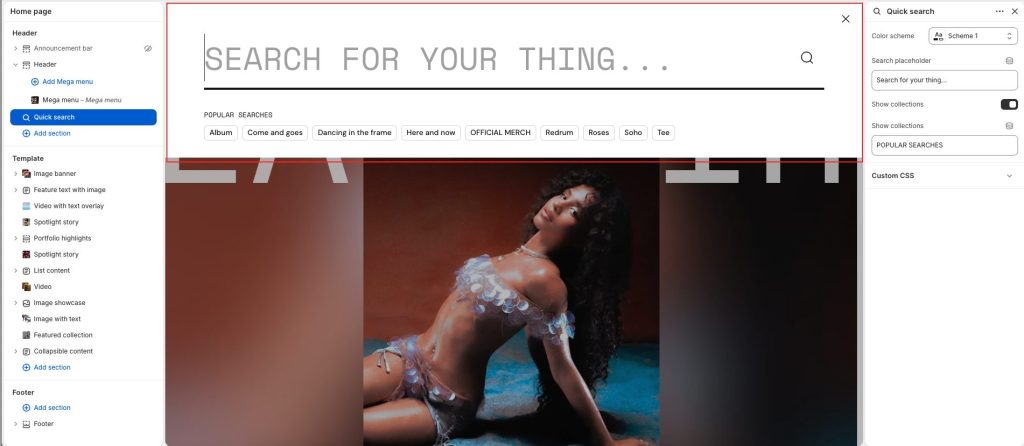
Search Placeholder: Set the text displayed in the search input field when no keyword has been entered. This placeholder text serves as a prompt or suggestion for what users can search for, improving user experience and making the search interface more intuitive.
Show collections: Enable/disable collections to suggest before performing a search.