
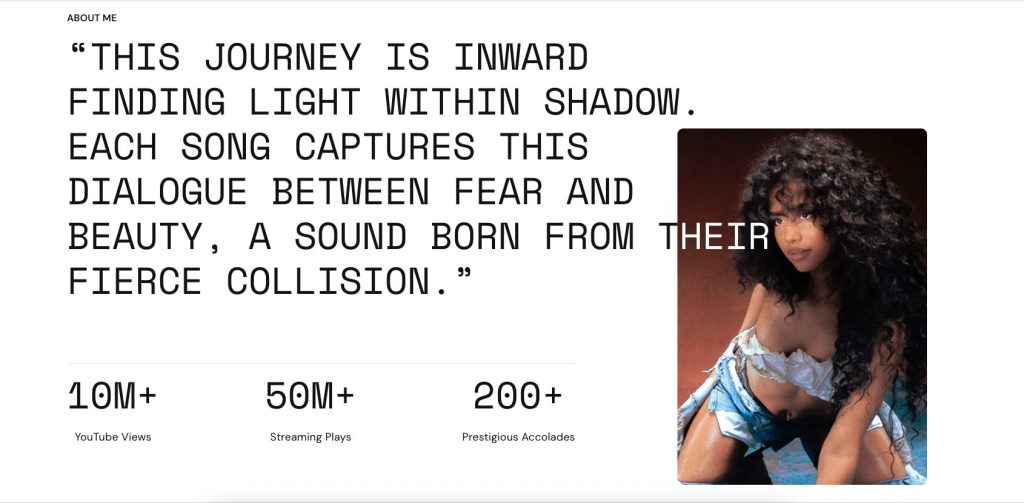
Display featured content with supporting images and statistic counters in a clean, modern layout. Use this section to emphasize accomplishments, insights, or brand highlights.
Configure your Featured text with image section:
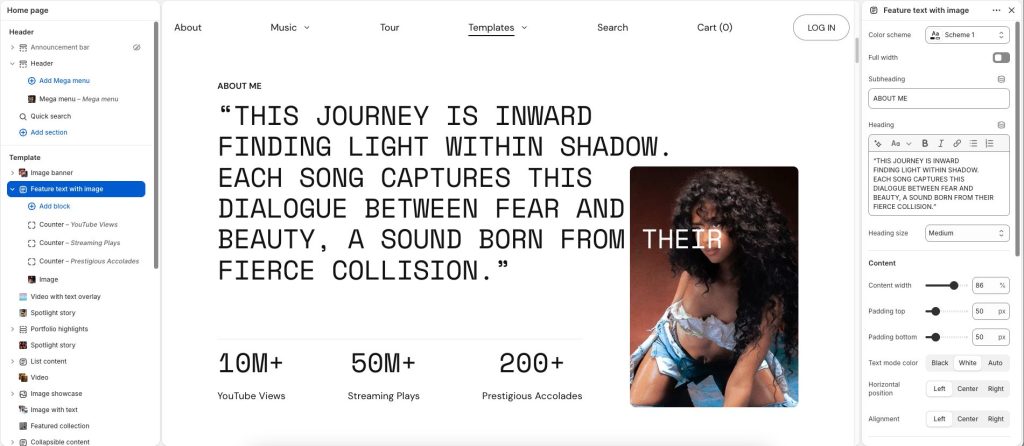
Use the Color scheme picker to select a color scheme for the section.
Enter the Subheading and Heading text to display inside the section
Use the Heading size options to set the section’s heading text
Content
Edit Content Width according to the site’s purpose.
Set Padding top/ Padding bottom to set space.
Text mode color: 3 types of mode: White, Black, and Auto (color follows the text color of the color scheme). This text color will display when the text overlaps the image.
Counter
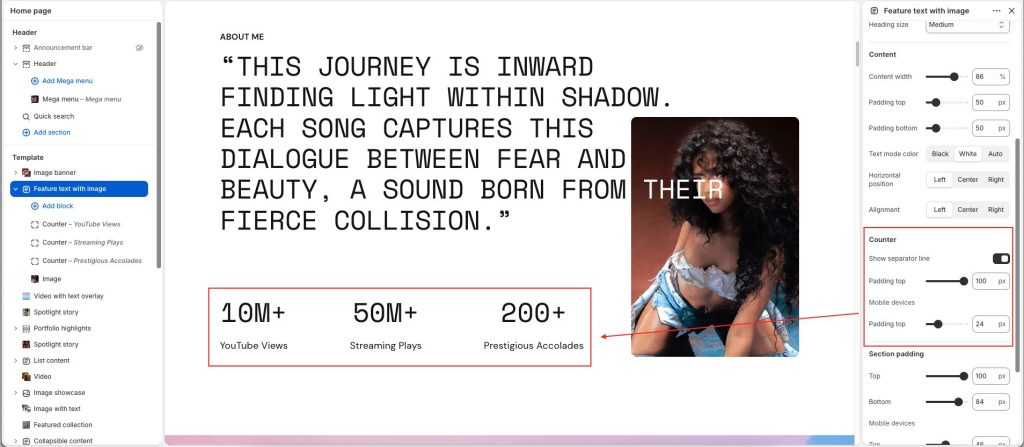
Show separator: separate the counter from the text section
Set Padding top to make space at the top for both Desktop and mobile screens.
Counter block
There are up to 3 counter blocks in this section.
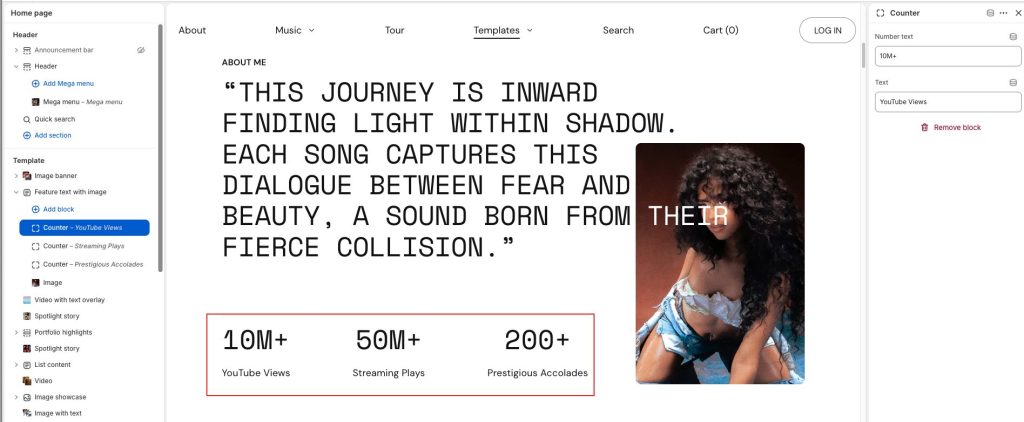
Set Number text to display inside each counter.
Add Text to get more information for the Number text
Image block
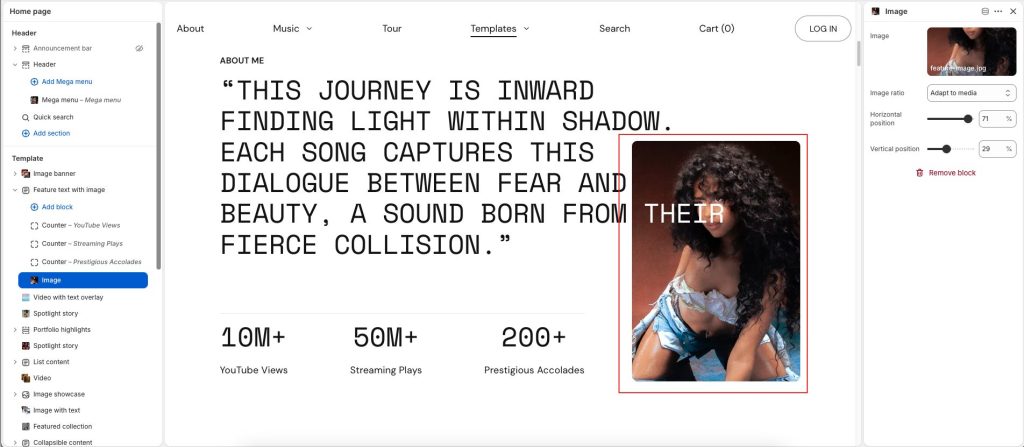
Choose Image ratio: select one of these options: Adapt to media, Landscape (4:3), Square (1:1), Portrait (5:6), and Tall (2:3).
Horizontal/Vertical position: set the image position on the section